> ## Documentation Index
> Fetch the complete documentation index at: https://docs.membase.so/llms.txt
> Use this file to discover all available pages before exploring further.
# Cursor
> Connect Membase to Cursor with one-click MCP setup. You can also use the Membase Cursor plugin for packaged rules and skills.
Cursor supports **one-click MCP setup** from the Membase dashboard. This is the default setup path and gives Cursor access to Membase memory and wiki tools through the hosted Membase MCP server.
From the [Membase dashboard](https://app.membase.so), select Cursor and click the **"Add to Cursor"** badge.
Cursor will show a confirmation dialog. Click **Install** to proceed.
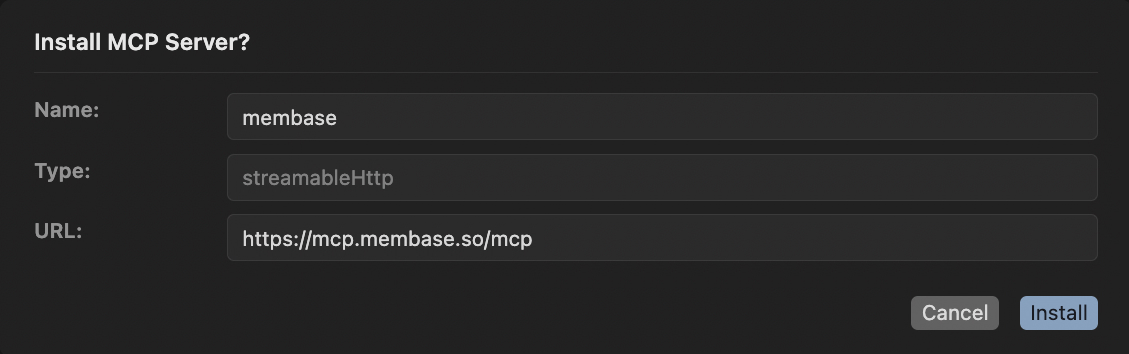 After installation, find Membase in the MCP Servers section and click **Connect**.
 A browser window opens automatically. Log in to complete authentication. Membase is now ready in Cursor.
## Cursor Plugin
Membase also has a [Cursor plugin](https://github.com/aristoapp/cursor-membase). The plugin uses the same hosted Membase MCP server and Cursor OAuth flow, but packages additional Cursor guidance with the connection:
* **MCP tools**: `search_memory`, `add_memory`, `get_current_date`, `search_wiki`, `add_wiki`, `update_wiki`, and `delete_wiki`
* **Resources**: `membase://profile` for stable user settings and `membase://recent` for recent memory context
* **Always-on rule**: Guides Cursor to search and save Membase context when it is relevant
* **Skills**: Helps Cursor choose between memory and wiki workflows for searching, saving, and managing knowledge
Install it from the [Cursor Marketplace](https://cursor.com/marketplace) when available in your workspace, then click **Connect** next to the Membase MCP server in Cursor settings. No npm package, CLI login, or API key is required.
## Troubleshooting
Use the one-click MCP setup from the Membase dashboard. It connects Cursor to the same hosted Membase MCP server and supports memory and wiki tools.
Click **Connect** next to the Membase MCP server in Cursor settings and complete browser OAuth. Cursor owns the OAuth connection for this setup.
You can keep that setup. If you later install the Cursor plugin, remove duplicate Membase MCP entries if Cursor shows the same tools twice.
## Next Steps
Import chat history, connect apps, and more.
Chat with Memory, agent retrieval, and dashboard exploration.
Store factual knowledge alongside your memories.
See every MCP tool your agent can call.
A browser window opens automatically. Log in to complete authentication. Membase is now ready in Cursor.
## Cursor Plugin
Membase also has a [Cursor plugin](https://github.com/aristoapp/cursor-membase). The plugin uses the same hosted Membase MCP server and Cursor OAuth flow, but packages additional Cursor guidance with the connection:
* **MCP tools**: `search_memory`, `add_memory`, `get_current_date`, `search_wiki`, `add_wiki`, `update_wiki`, and `delete_wiki`
* **Resources**: `membase://profile` for stable user settings and `membase://recent` for recent memory context
* **Always-on rule**: Guides Cursor to search and save Membase context when it is relevant
* **Skills**: Helps Cursor choose between memory and wiki workflows for searching, saving, and managing knowledge
Install it from the [Cursor Marketplace](https://cursor.com/marketplace) when available in your workspace, then click **Connect** next to the Membase MCP server in Cursor settings. No npm package, CLI login, or API key is required.
## Troubleshooting
Use the one-click MCP setup from the Membase dashboard. It connects Cursor to the same hosted Membase MCP server and supports memory and wiki tools.
Click **Connect** next to the Membase MCP server in Cursor settings and complete browser OAuth. Cursor owns the OAuth connection for this setup.
You can keep that setup. If you later install the Cursor plugin, remove duplicate Membase MCP entries if Cursor shows the same tools twice.
## Next Steps
Import chat history, connect apps, and more.
Chat with Memory, agent retrieval, and dashboard exploration.
Store factual knowledge alongside your memories.
See every MCP tool your agent can call.