> ## Documentation Index
> Fetch the complete documentation index at: https://docs.membase.so/llms.txt
> Use this file to discover all available pages before exploring further.
# VS Code
> Connect Membase to VS Code with one-click install. Add persistent memory to your VS Code AI assistant for context-aware coding across sessions.
VS Code supports **one-click install** via deep link.
From the [Membase dashboard](https://app.membase.so), select VS Code and click the **"Add to VS Code"** button.
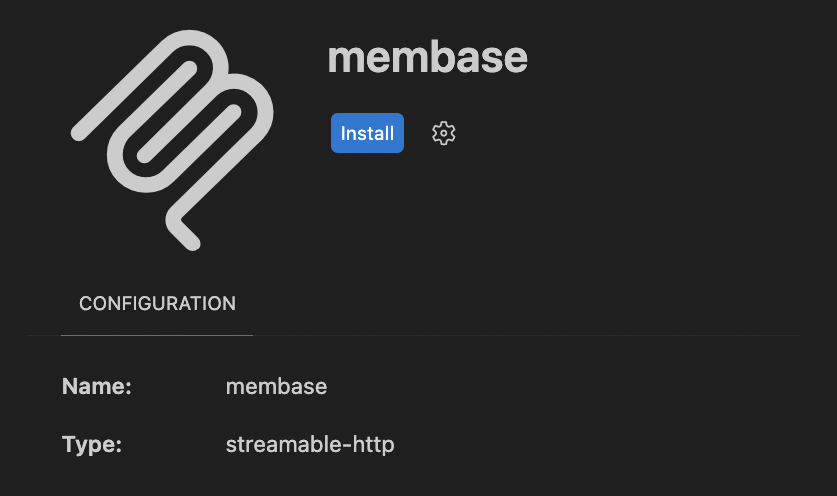
VS Code will show a confirmation dialog. Click **Install** to proceed.
 A browser window opens. Log in to complete authentication.
## Next Steps
Import chat history, connect apps, and more.
Chat with Memory, agent retrieval, and dashboard exploration.
Store factual knowledge alongside your memories.
See every MCP tool your agent can call.
A browser window opens. Log in to complete authentication.
## Next Steps
Import chat history, connect apps, and more.
Chat with Memory, agent retrieval, and dashboard exploration.
Store factual knowledge alongside your memories.
See every MCP tool your agent can call.