> ## Documentation Index
> Fetch the complete documentation index at: https://docs.membase.so/llms.txt
> Use this file to discover all available pages before exploring further.
# How Membase Works
> How context flows into Membase's two knowledge stores (Memory and Wiki), gets structured, and comes back to your agents.
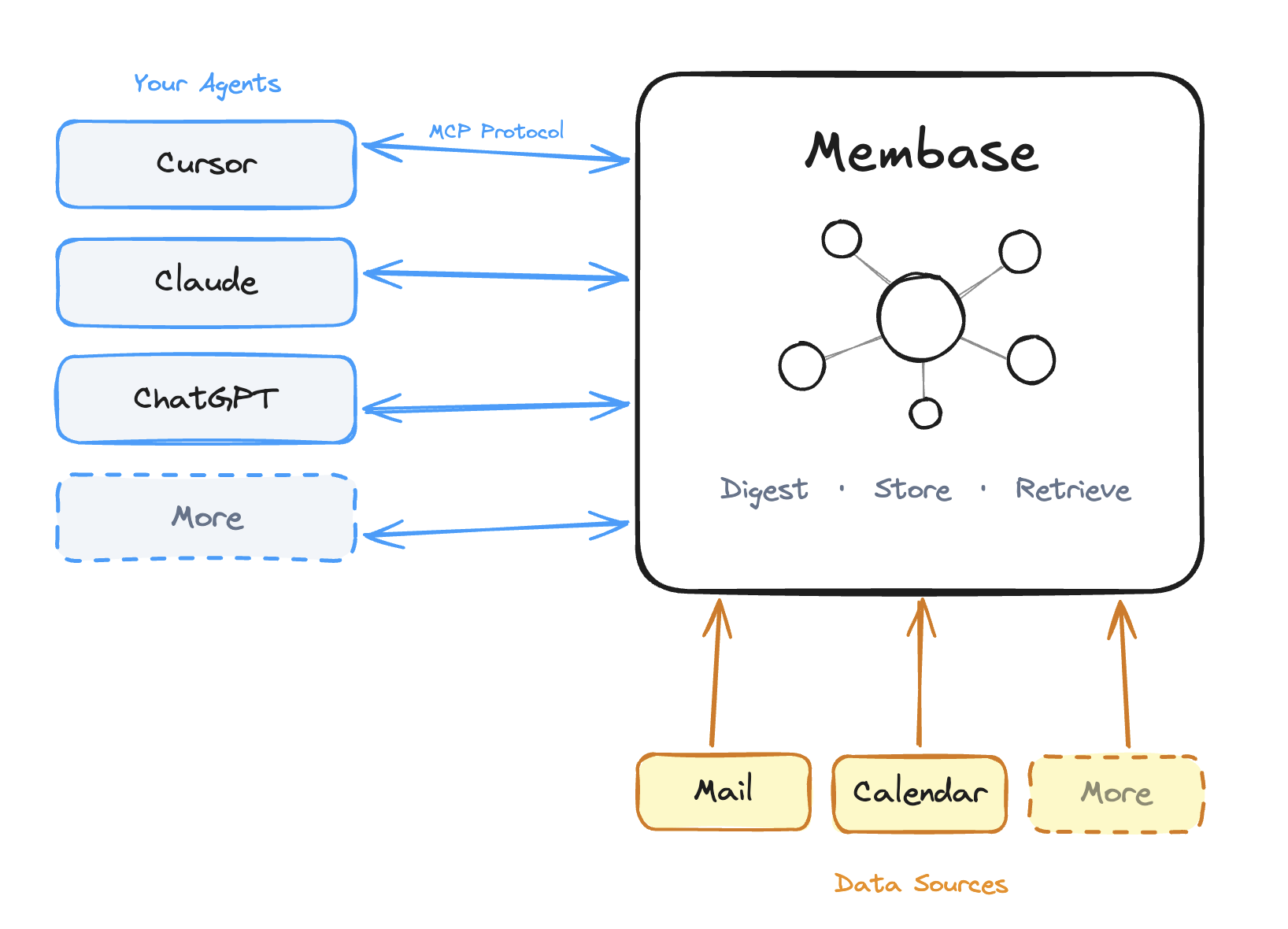
Membase transforms raw context into structured, retrievable knowledge that your agents can pull from across sessions. This page walks through the full lifecycle.
## Architecture Overview
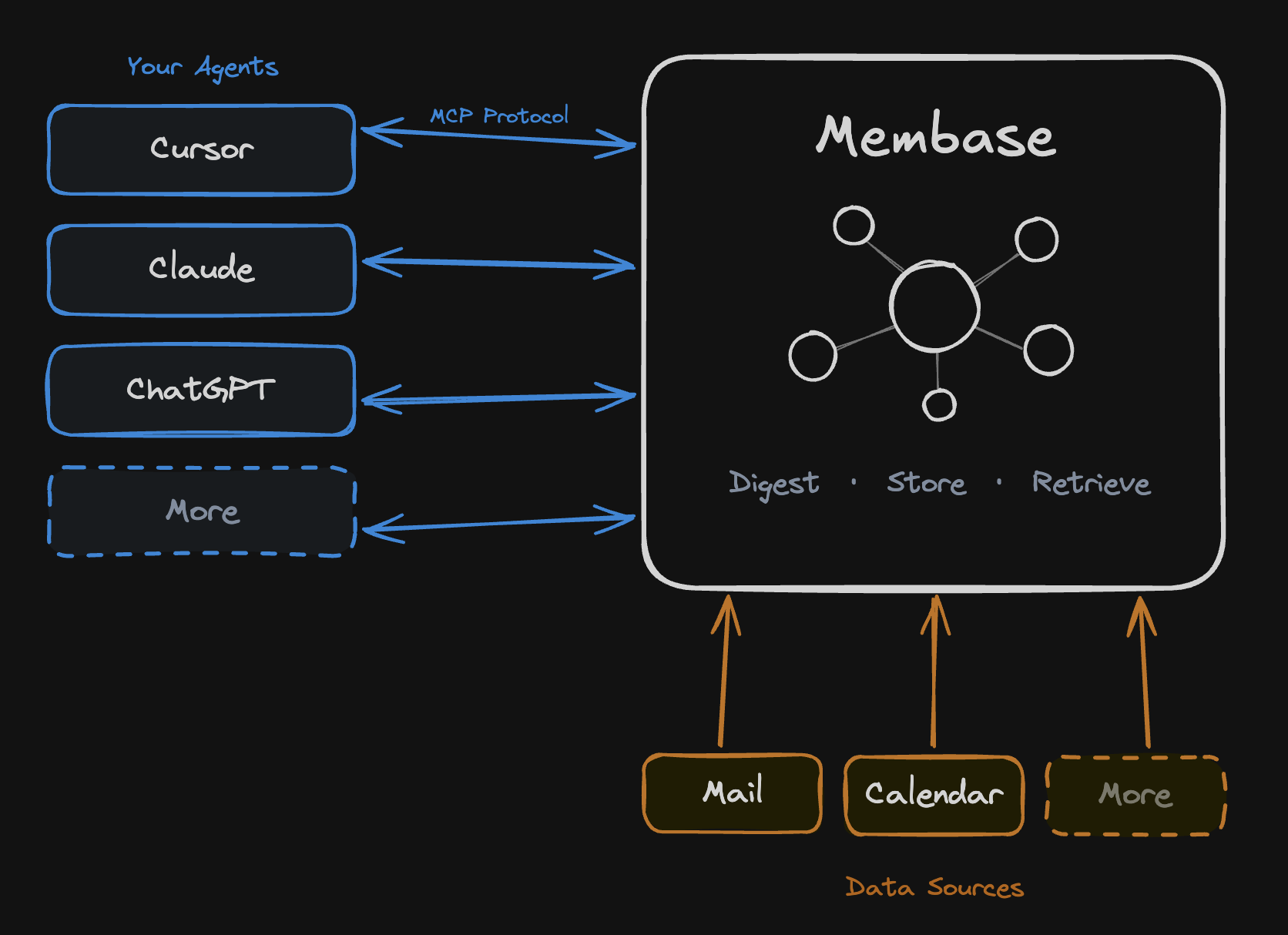
Membase keeps **two complementary knowledge stores**, each optimized for a different shape of information. Agents can read and write both through MCP, and Chat in Dashboard can consult both when stored context helps.
| | **Memory** | **Wiki** |
| ----------------------- | --------------------------------------------------------------------------------------------------------------------- | ------------------------------------------------------------------------------------------------------------------------------------------------------------------------------- |
| **What it stores** | Personal context: preferences, decisions, habits, meetings, emails | Factual knowledge: docs, specs, references, stable notes |
| **How it's structured** | Episodes and entities in a knowledge graph | Markdown documents linked with `[[wikilinks]]`, organized into Projects or Basic |
| **Primary input** | Agent conversations (`add_memory`), Chat in Dashboard, chat history import, app integrations (Gmail, Calendar, Slack) | You writing documents in the dashboard, Chat in Dashboard, `add_wiki` calls from agents, Notion live sync, Notion/Obsidian/Markdown imports, supported agent transcript capture |
| **Primary retrieval** | `search_memory` (semantic), Chat in Dashboard, graph and table views | `search_wiki` (hybrid: keyword + semantic), Chat in Dashboard, graph and table views |
Context from either store flows through three stages: **ingest → process → retrieve**. The rest of this page walks through each stage for both stores.
## 1. Context to Membase
How context enters each store.
Memory receives context from imports, agents, Chat in Dashboard, and integrations.
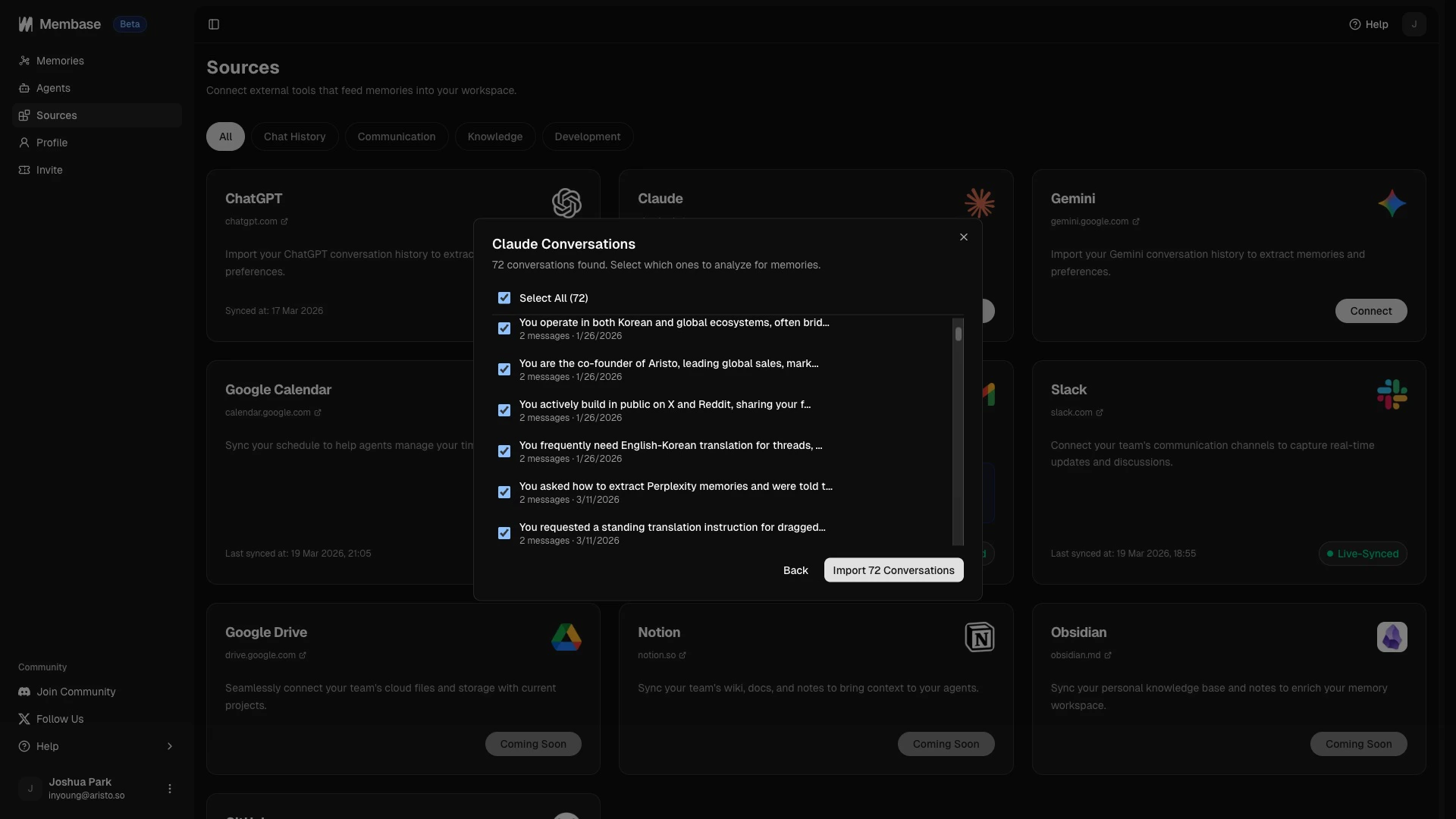
Already have months of conversations in ChatGPT, Claude, or Gemini? Export your chat history and upload it in [Sources](https://app.membase.so/sources) under the **Chat History** section. The entire archive goes through the same digesting pipeline as live conversations.
You talk to your agent normally. During the conversation the agent picks up on preferences, decisions, project details, and other durable context, and calls `add_memory` via MCP.
```text Example theme={null}
You: "Let's use Zustand instead of Redux for this project.
Also, I prefer functional components over class components."
→ Agent calls add_memory with this context
```
While talking directly to your knowledge base in the dashboard, Chat can save durable personal context as memory when you share something worth keeping.
Connected sources (Gmail, Google Calendar, Slack) sync new data automatically in the background. Each message, event, or email becomes an episode.
Membase accepts the incoming context for processing so the agent or sync can keep moving.
Wiki receives documents directly from you, Chat in Dashboard, or agent tool calls.
Already have a markdown knowledge base? Use **Wiki > Add > Import files** to import Notion exports, Obsidian vaults, or Markdown files into a target Project or Basic. `[[wikilinks]]` are preserved where available, and documents upload through the background import flow. See [Importing Documents](/features/wiki#importing-documents).
Open the Wiki tab, click **Add > Write document**, choose a Project or Basic, and write in markdown. Manual save and unsaved-changes warnings keep your content safe.
Connect Notion from Sources, choose the Notion pages available to Membase, then choose a target Wiki Project. Synced pages become source-backed Wiki documents. See [App Integrations](/connectors/apps#notion-live-sync).
Your connected agent can call `add_wiki` when you share factual, reference-style knowledge worth keeping. Example: "Write up our deployment rollback checklist" results in a new wiki document instead of a memory.
Supported agent plugins can preserve user/assistant conversation transcripts as original source material in Wiki, separate from extracted personal Memory.
Chat in Dashboard can also create wiki documents when you ask it to save factual, reference-style material.
The Wiki document is saved directly or prepared for background processing, depending on whether it came from a direct write, sync, or import.
## 2. Digesting and Structure
How raw input becomes structured, searchable knowledge.
Every memory (from agents or integrations) goes through the same pipeline.
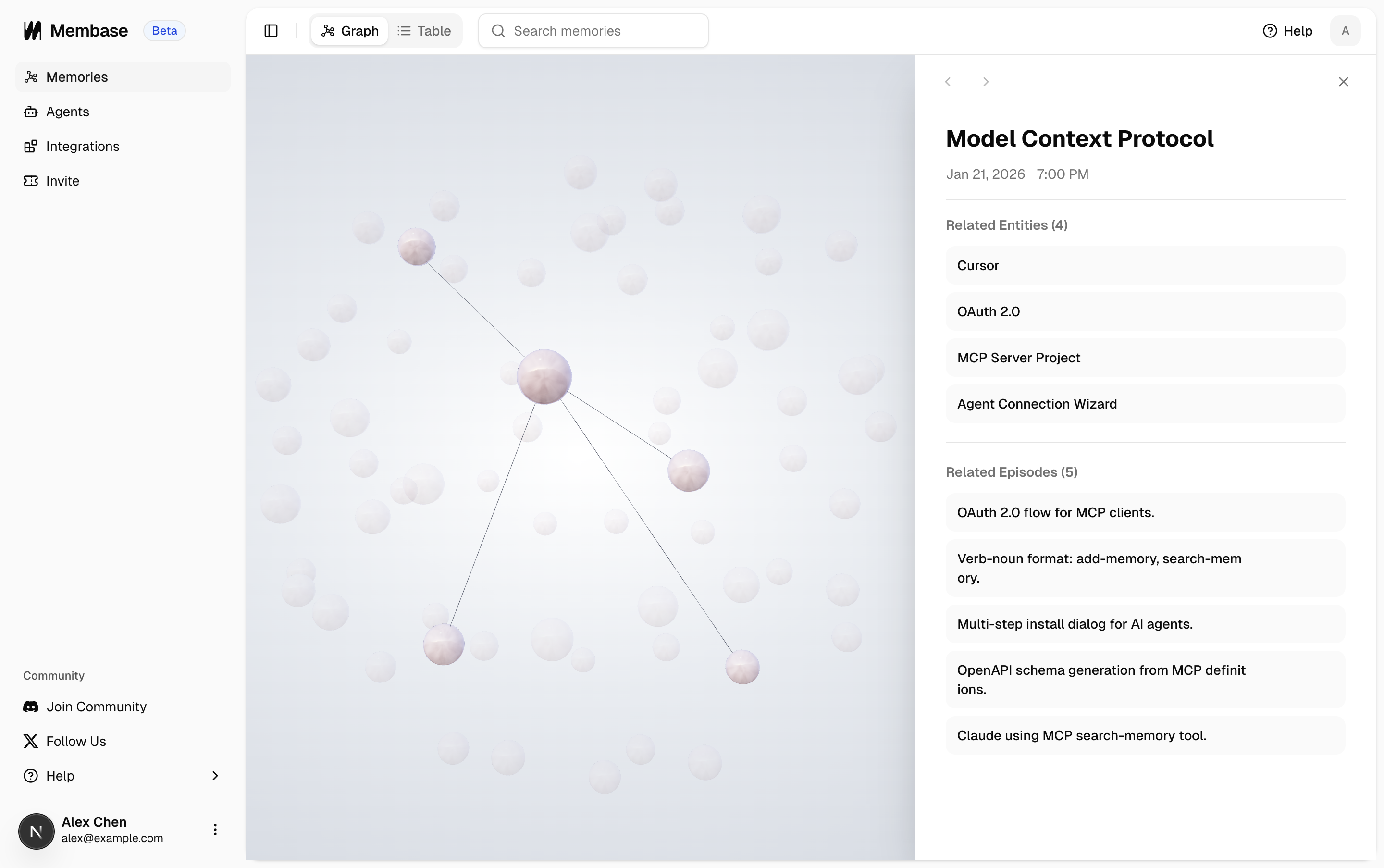
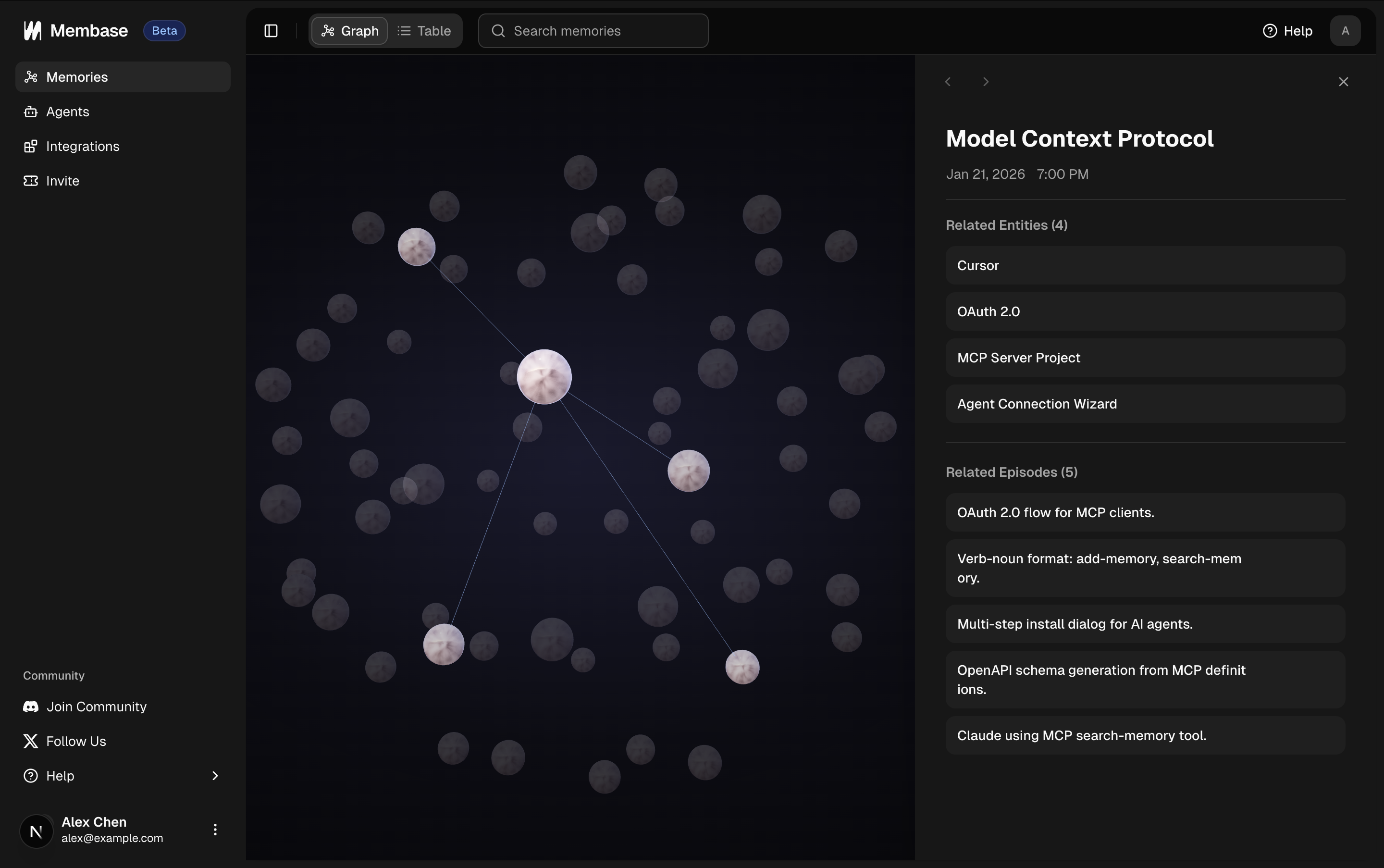
The raw input is saved as an **episode**, a snapshot of a conversation or data event. Episodes are the building blocks of memory.
Membase identifies key entities from the episode: people, projects, tools, preferences, decisions, dates, and other meaningful concepts.
```text Example entities from a conversation theme={null}
"Let's use Zustand instead of Redux"
→ Entities: Zustand, Redux, state management decision
```
Extracted entities are added to your knowledge graph. New entities connect to existing ones when they overlap, so "Zustand" mentioned in two different conversations becomes one entity with two linked episodes.
If the same fact appears in multiple episodes, Membase merges them. When new information contradicts an existing memory, the latest data takes priority.
The result is a continuously growing knowledge graph where entities, relationships, and episodes are all interconnected.
Wiki documents are stored as markdown plus structural metadata for fast retrieval.
The document's title and markdown content are saved to the Wiki store, filed into a Project or Basic.
Membase parses `[[wikilinks]]` in the content and maintains a bidirectional link graph. This is what powers backlinks, the force-directed graph view, and instant `[[` autocomplete in the editor.
Each document is indexed for **hybrid search**: a full-text index (BM25-style) for keyword queries and a semantic embedding for meaning-based queries. Both are fused with Reciprocal Rank Fusion (RRF) at query time.
Imported and synced documents keep source provenance when available. When a source update or generated change needs review, Membase can route it through Inbox Review so you can inspect, edit, accept, reject, or undo the change.
## 3. Membase to Your Agent
How context flows back when an agent or Chat needs it.
The agent sends a query describing what personal context it needs. This happens automatically when prior context would improve the response.
```text Example theme={null}
You: "Set up a new component for the settings page."
→ Agent calls search_memory: "project tech stack, component preferences"
```
The query is matched against your graph using semantic search. Relevant episodes and their connected entities are retrieved.
Relevant results might include:
* "Uses Next.js with TypeScript"
* "Prefers functional components"
* "State management: Zustand"
* "Styling: Tailwind CSS"
Results are scored by relevance and returned as episode-centric bundles. Only the most useful context is included, keeping the agent's context window clean.
The agent generates a response grounded in your actual preferences and project details, without you having to repeat any of it.
Here's a real example: Claude retrieving a git workflow from Membase during a conversation.
The agent sends a query describing what factual knowledge it needs.
```text Example theme={null}
You: "Remind me how our auth middleware handles expired tokens."
→ Agent calls search_wiki: "auth middleware expired token"
```
The query is matched with both full-text keyword search and semantic similarity. The two rankings are fused with Reciprocal Rank Fusion, so you get solid results whether the query is literal or conceptual.
Unlike memory episodes, wiki results include the **full document body**, so the agent has enough context to answer directly instead of juggling fragments.
The agent grounds its answer in the retrieved documents and cites them if your prompt encourages citations.
Chat in Dashboard can use both `search_memory` and `search_wiki` when stored context could help, then combine the results into a single answer with citations. Your agents should do the same when the user's question could benefit from either store.
This entire cycle (ingest → structure → retrieve) runs continuously as you use Membase. The more you interact, the richer both stores become, and the smarter your agents get.
## Next Steps
Understand why shared memory matters.
Learn about the MCP tools available to your agents.
Dive into memory exploration and management.
Dive into Wiki documents, Projects, imports, and Inbox Review.
 | | **Memory** | **Wiki** |
| ----------------------- | --------------------------------------------------------------------------------------------------------------------- | ------------------------------------------------------------------------------------------------------------------------------------------------------------------------------- |
| **What it stores** | Personal context: preferences, decisions, habits, meetings, emails | Factual knowledge: docs, specs, references, stable notes |
| **How it's structured** | Episodes and entities in a knowledge graph | Markdown documents linked with `[[wikilinks]]`, organized into Projects or Basic |
| **Primary input** | Agent conversations (`add_memory`), Chat in Dashboard, chat history import, app integrations (Gmail, Calendar, Slack) | You writing documents in the dashboard, Chat in Dashboard, `add_wiki` calls from agents, Notion live sync, Notion/Obsidian/Markdown imports, supported agent transcript capture |
| **Primary retrieval** | `search_memory` (semantic), Chat in Dashboard, graph and table views | `search_wiki` (hybrid: keyword + semantic), Chat in Dashboard, graph and table views |
Context from either store flows through three stages: **ingest → process → retrieve**. The rest of this page walks through each stage for both stores.
## 1. Context to Membase
How context enters each store.
| | **Memory** | **Wiki** |
| ----------------------- | --------------------------------------------------------------------------------------------------------------------- | ------------------------------------------------------------------------------------------------------------------------------------------------------------------------------- |
| **What it stores** | Personal context: preferences, decisions, habits, meetings, emails | Factual knowledge: docs, specs, references, stable notes |
| **How it's structured** | Episodes and entities in a knowledge graph | Markdown documents linked with `[[wikilinks]]`, organized into Projects or Basic |
| **Primary input** | Agent conversations (`add_memory`), Chat in Dashboard, chat history import, app integrations (Gmail, Calendar, Slack) | You writing documents in the dashboard, Chat in Dashboard, `add_wiki` calls from agents, Notion live sync, Notion/Obsidian/Markdown imports, supported agent transcript capture |
| **Primary retrieval** | `search_memory` (semantic), Chat in Dashboard, graph and table views | `search_wiki` (hybrid: keyword + semantic), Chat in Dashboard, graph and table views |
Context from either store flows through three stages: **ingest → process → retrieve**. The rest of this page walks through each stage for both stores.
## 1. Context to Membase
How context enters each store.