> ## Documentation Index
> Fetch the complete documentation index at: https://docs.membase.so/llms.txt
> Use this file to discover all available pages before exploring further.
# Knowledge Wiki
> Store factual knowledge in Membase alongside your memories. Create Wiki documents with markdown and [[wikilinks]], organize them into Projects, import Notion/Obsidian/Markdown sources, and let agents retrieve knowledge through MCP.
The **Knowledge Wiki** is your durable knowledge base inside Membase. While Memory captures personal context such as preferences, decisions, and habits, Wiki stores stable reference material: documentation, specs, meeting notes, research, runbooks, source-backed transcripts, and anything else you want to retrieve by title.
## Memory vs Wiki
Membase keeps two complementary knowledge stores. Agents can search both, but each is optimized for a different kind of context.
| | Memory | Wiki |
| ----------------------- | --------------------------------------------------------------------------------------------------------------------------------------------- | ------------------------------------------------------------------------------------------------------------------------------------------------------- |
| **What it stores** | Personal context: preferences, decisions, habits, ongoing projects | Factual knowledge: docs, references, specs, stable notes, source transcripts |
| **How you capture it** | Agents call `add_memory`, Chat in Dashboard can save durable context, and integrations like Gmail, Calendar, and Slack sync in the background | You write documents, import Notion/Obsidian/Markdown files, live-sync Notion pages, ask Chat to save reference material, or your agent calls `add_wiki` |
| **How you retrieve it** | `search_memory`, Chat in Dashboard, graph and table views | `search_wiki`, Chat in Dashboard, Wiki search, graph, and table views |
| **Structure** | Episodes and entities in a knowledge graph | Markdown documents linked with `[[wikilinks]]`, filed into Projects or Basic |
For user questions, agents should usually call both `search_memory` and `search_wiki`: memory for personal context, Wiki for factual knowledge.
## Projects
Projects are the main way to organize Wiki documents. They keep related docs together, make the Wiki graph easier to scan, and give agents a user-facing filing destination for `add_wiki`, `search_wiki`, and `update_wiki`.
The Wiki root opens a Project overview. Each Project card shows its name, description, icon, color, document count, and recent activity, so you can scan the shape of your knowledge base before opening a specific Project.
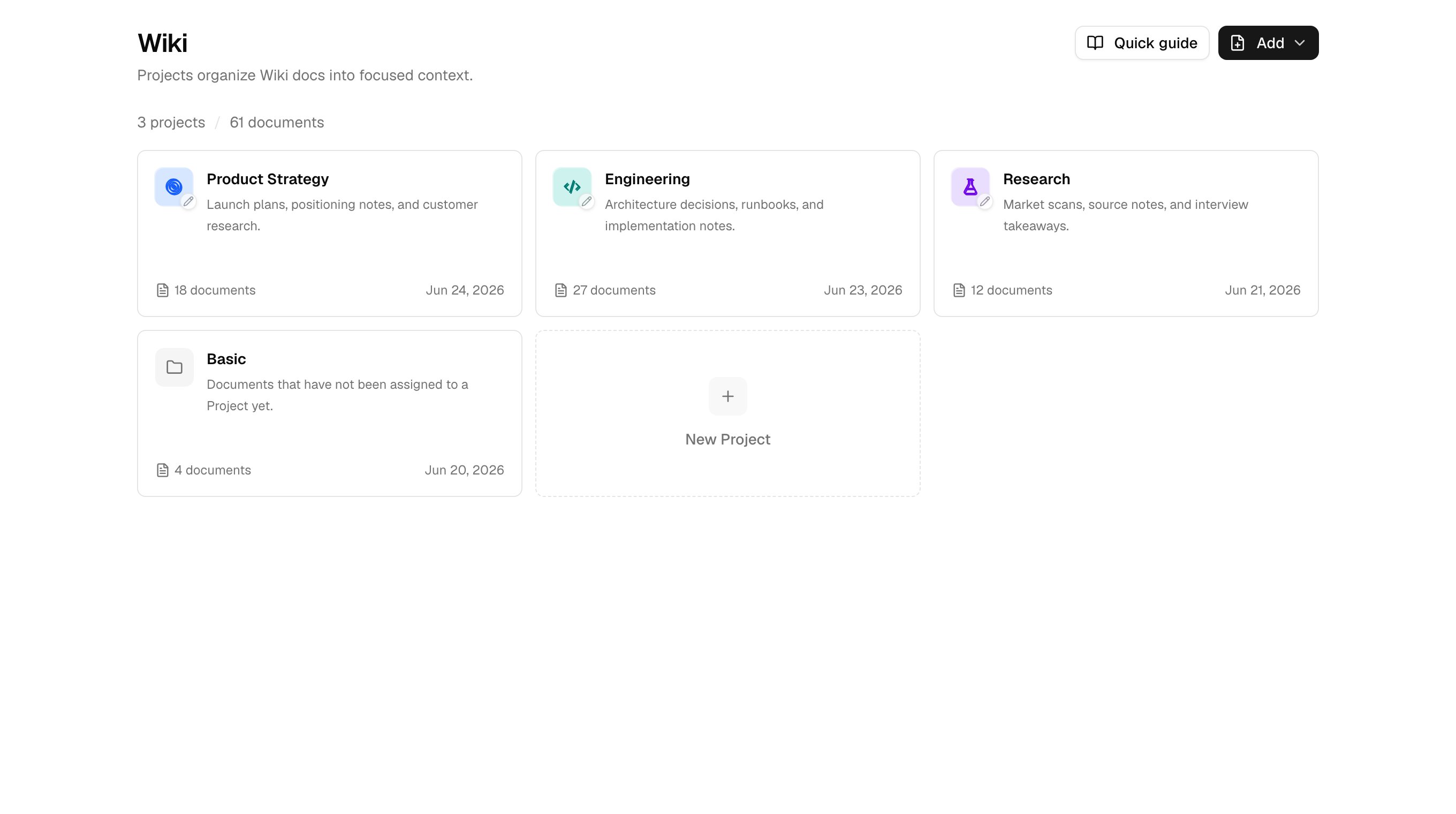
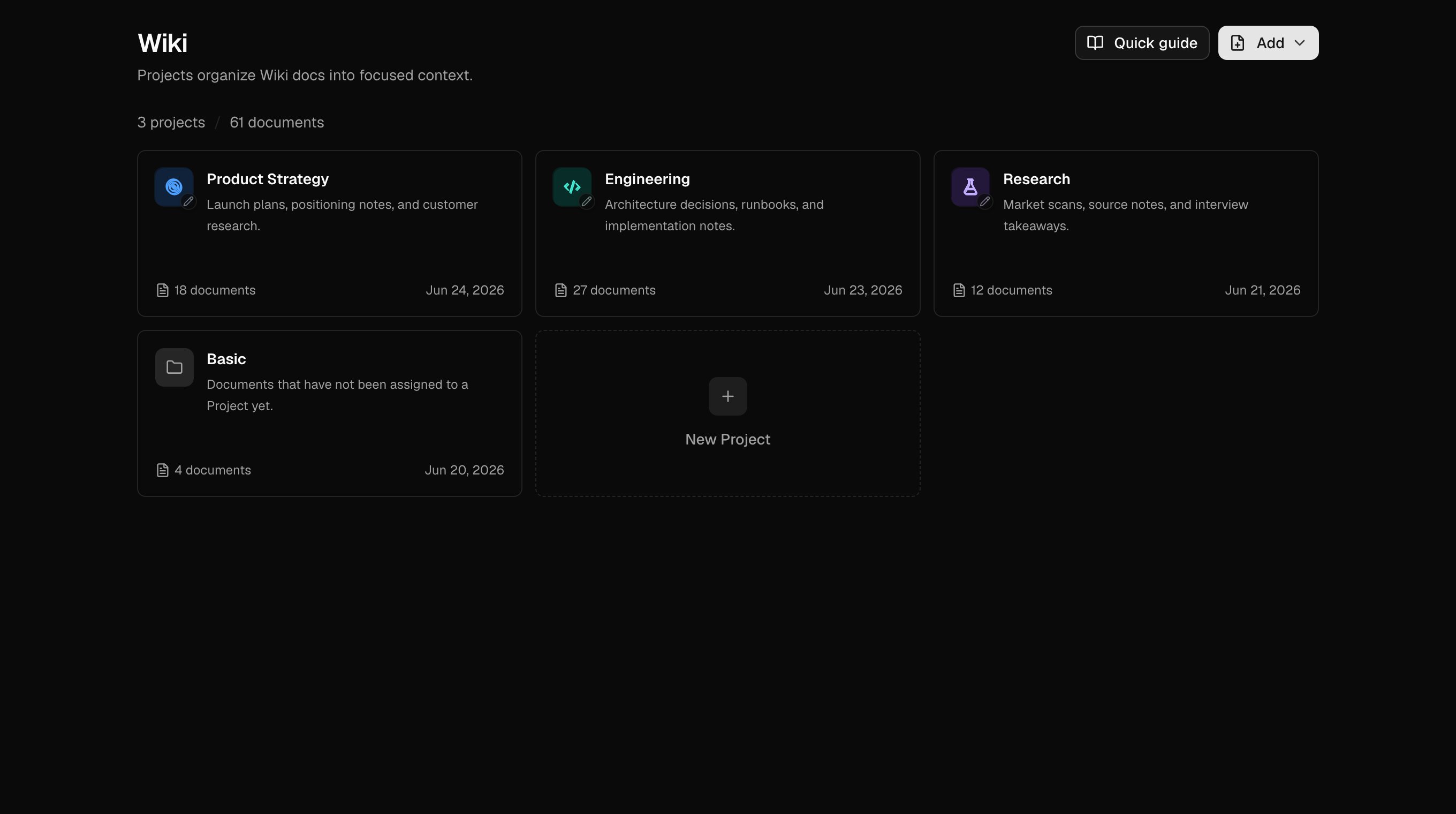 When Membase cannot confidently place a document into a Project, it can land in Basic so you can organize it later. Basic is the fallback for documents that have not been assigned to a Project yet.
From the Wiki page, you can:
* Open the Project overview, search across Projects, and filter by name, description, or document title
* Create, rename, reorder, and delete Projects
* Edit a Project name, description, icon, and color
* Add or import documents into a Project
* Move documents between Projects or back to Basic
* Scope the document list, graph, and search to a Project
## Documents
Wiki documents are markdown files with source awareness and bidirectional links.
* **Markdown editor**: Headings, lists, tables, code blocks, and other standard markdown formatting
* **`[[Wikilinks]]`**: Type `[[` in the editor to get suggestions from existing document titles
* **Linked Mentions**: See documents that reference the current document, with snippets around each mention
* **Manual save**: Save from the editor when you are ready
* **Unsaved changes warning**: Membase warns before discarding pending edits
* **Source provenance**: Imported and synced documents show where they came from when source data is available
Inline image attachments in Wiki documents are not supported yet. External image URLs in markdown can render, but there is no uploader inside the editor today.
## Inbox Review
Wiki can suggest and route changes through **Inbox Review** when an automated update needs your attention. Review items can come from source changes, merge suggestions, larger rewrites, or conflict resolution work.
When Membase cannot confidently place a document into a Project, it can land in Basic so you can organize it later. Basic is the fallback for documents that have not been assigned to a Project yet.
From the Wiki page, you can:
* Open the Project overview, search across Projects, and filter by name, description, or document title
* Create, rename, reorder, and delete Projects
* Edit a Project name, description, icon, and color
* Add or import documents into a Project
* Move documents between Projects or back to Basic
* Scope the document list, graph, and search to a Project
## Documents
Wiki documents are markdown files with source awareness and bidirectional links.
* **Markdown editor**: Headings, lists, tables, code blocks, and other standard markdown formatting
* **`[[Wikilinks]]`**: Type `[[` in the editor to get suggestions from existing document titles
* **Linked Mentions**: See documents that reference the current document, with snippets around each mention
* **Manual save**: Save from the editor when you are ready
* **Unsaved changes warning**: Membase warns before discarding pending edits
* **Source provenance**: Imported and synced documents show where they came from when source data is available
Inline image attachments in Wiki documents are not supported yet. External image URLs in markdown can render, but there is no uploader inside the editor today.
## Inbox Review
Wiki can suggest and route changes through **Inbox Review** when an automated update needs your attention. Review items can come from source changes, merge suggestions, larger rewrites, or conflict resolution work.
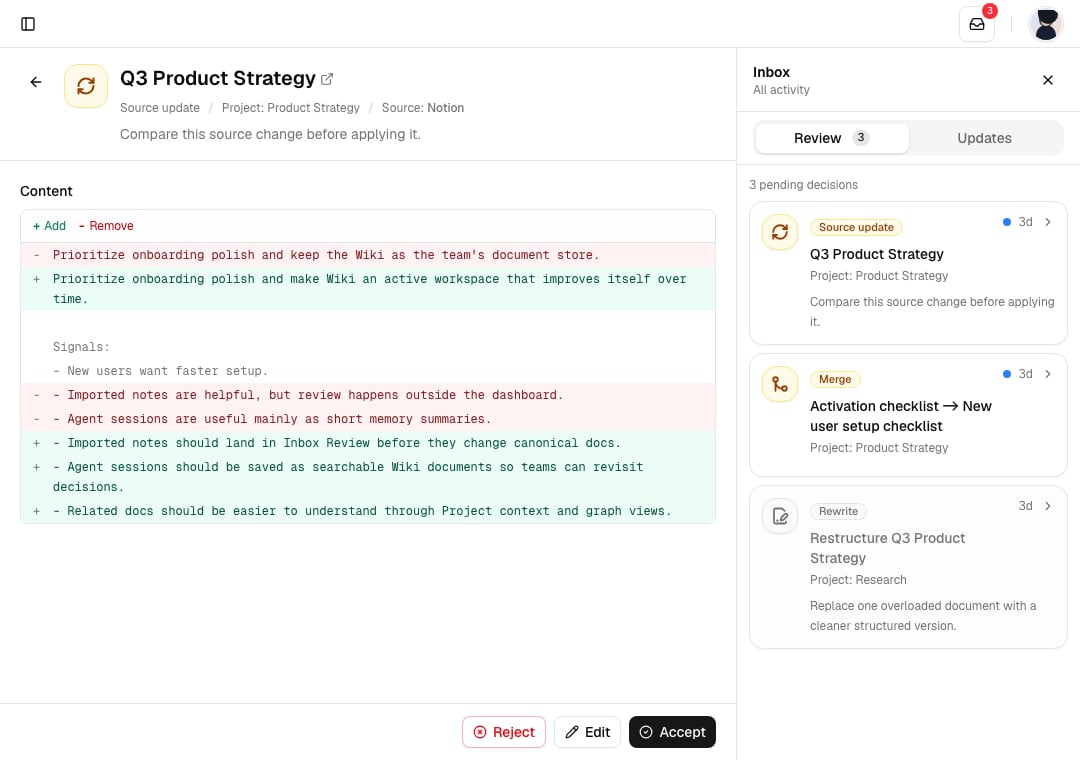
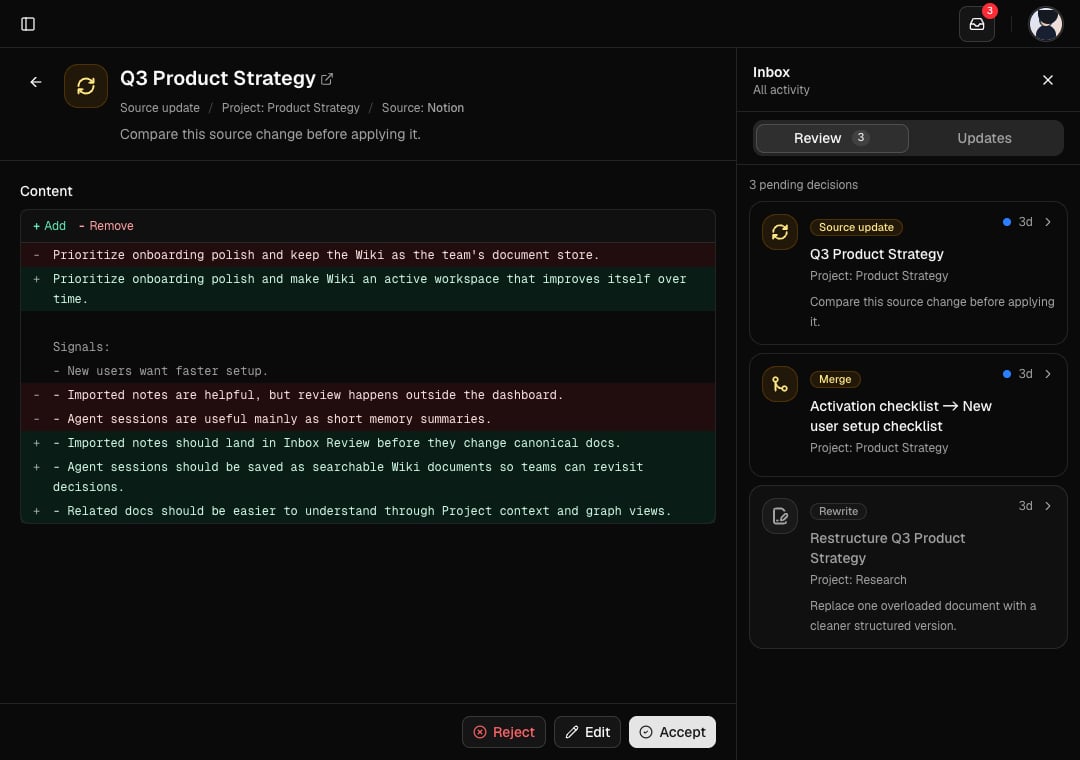 In Inbox Review, you can:
* Inspect the current and proposed content
* Accept the proposed change
* Edit the proposed title, content, or metadata before accepting
* Reject a proposal
* Undo supported applied or auto-applied changes
The **Updates** tab in Inbox shows recent Wiki activity so you can tell what changed without hunting through individual documents.
## Graph View
The Wiki graph visualizes documents as a network. Each node is a document, each edge is a `[[wikilink]]` or derived connection, and Project styling helps related knowledge stand out.
* **Force layout**: Drag nodes, zoom, and follow relationships
* **Project styling**: Project colors make clusters easier to scan
* **Project scope**: View all Wiki documents or one Project at a time
* **Click a node**: Open the document from the graph
## Table View
The table view is a structured list of documents with sorting, filtering, and bulk actions.
* **Sort** by title, Project, updated date, or created date
* **Filter** by Project or search query
* **Pagination** for large knowledge bases
* **Bulk actions**: Move selected documents to a Project or delete them
## Importing Documents
Use **Wiki > Add > Import files** to import documents from a file or archive.
Supported import formats:
| Format | Accepted files | Notes |
| ------------ | -------------------------------------- | ----------------------------------------------------------------------------------------------------- |
| **Notion** | Notion `.zip` export or Markdown files | One-time import. Use [Notion live sync](/connectors/apps#notion-live-sync) for source-backed updates. |
| **Obsidian** | Vault `.zip` or Markdown files | Preserves `[[wikilinks]]` and imports notes into the target Project or Basic. |
| **Markdown** | `.md`, `.markdown`, or Markdown ZIPs | Use for generic markdown knowledge bases. |
Imports run in the background. The dialog shows upload and processing progress, then reports documents created, documents skipped, update candidates, backlinks created, and errors.
### Target Project
When importing files, choose a target Project or Basic. Archive and multi-file imports keep source path information where available, but imported documents start in the destination you choose and can be moved later.
See [App Integrations](/connectors/apps) for Notion live sync, Obsidian vault imports, and generic Markdown imports.
## Search
Wiki search uses hybrid retrieval: keyword matching plus semantic similarity. This lets you search with exact phrases such as `"OAuth PKCE"` or conceptual queries such as `"how do we authenticate users"`.
Search is available in three places:
* **Chat in Dashboard**: Chat can pull from Memory and Wiki when stored context is relevant
* **Wiki page**: Search filters documents in the current Wiki scope
* **Agents via MCP**: Connected agents call `search_wiki` during conversations
### Scoping Search to a Project
You can restrict search to one Project:
* **Dashboard**: Click a Project in the Wiki navigation to scope the list, graph, and search
* **MCP**: Pass `project` to `search_wiki`. Existing Projects are surfaced to agents so they can reuse names. `collection` remains a legacy alias for older clients.
## Managing Wiki Documents
Unlike memories, Wiki documents are fully editable from both the dashboard and connected agents.
### Create
* **Dashboard**: Click **Add > Write document**, choose a Project or Basic, and write in markdown
* **Import**: Use **Add > Import files** for Notion exports, Obsidian vaults, or Markdown files
* **Notion live sync**: Connect Notion from Sources and choose a target Project
* **Agent**: Ask your connected agent to save a factual artifact; it can call `add_wiki`
### Edit
* **Dashboard**: Open any document and edit it inline
* **Agent**: Your agent can call `update_wiki` with a document ID to change title, content, or Project
* **Inbox Review**: Source-backed or generated proposals can be edited before accepting
### Delete
* **Dashboard**: Delete one document from its document view, or bulk-delete selected rows from the table
* **Sources**: Remove Notion live-synced documents or imported Obsidian/Markdown documents from the source card
* **Agent**: Your agent can call `delete_wiki` with a document ID. Agents should ask for confirmation before deleting.
Deleted Wiki documents cannot be recovered. Make sure you want to permanently remove a document before deleting.
## MCP Tools
Your connected agents can read and write Wiki documents using these MCP tools. See the [Membase MCP reference](/features/membase-mcp) for full parameters.
| Tool | What it does |
| ------------- | -------------------------------------------------------------------------------------------------- |
| `add_wiki` | Create a complete Wiki document with title, markdown content, and optional Project filing location |
| `search_wiki` | Search Wiki documents and optionally scope results to a Project |
| `update_wiki` | Edit an existing document's title, content, or Project |
| `delete_wiki` | Permanently remove a document |
Tell your agent that `add_wiki` is for factual knowledge and `add_memory` is for personal context. Most agents pick this up from the tool descriptions automatically, but repeating it in your system prompt can help.
## Document Quotas
Wiki documents are counted against your plan.
| Plan | Wiki documents |
| -------- | -------------- |
| **Free** | 200 |
| **Pro** | 2,000 |
The current usage is shown on the **Billing** tab and at the top of the Wiki page. When you reach the limit, creating, syncing, or importing new documents returns a quota error until you delete existing documents or upgrade your plan.
## Next Steps
Personal context that complements the Wiki.
Ask questions across both Memory and Wiki.
See full parameters for the Wiki MCP tools.
Bring more sources into your knowledge base.
In Inbox Review, you can:
* Inspect the current and proposed content
* Accept the proposed change
* Edit the proposed title, content, or metadata before accepting
* Reject a proposal
* Undo supported applied or auto-applied changes
The **Updates** tab in Inbox shows recent Wiki activity so you can tell what changed without hunting through individual documents.
## Graph View
The Wiki graph visualizes documents as a network. Each node is a document, each edge is a `[[wikilink]]` or derived connection, and Project styling helps related knowledge stand out.
* **Force layout**: Drag nodes, zoom, and follow relationships
* **Project styling**: Project colors make clusters easier to scan
* **Project scope**: View all Wiki documents or one Project at a time
* **Click a node**: Open the document from the graph
## Table View
The table view is a structured list of documents with sorting, filtering, and bulk actions.
* **Sort** by title, Project, updated date, or created date
* **Filter** by Project or search query
* **Pagination** for large knowledge bases
* **Bulk actions**: Move selected documents to a Project or delete them
## Importing Documents
Use **Wiki > Add > Import files** to import documents from a file or archive.
Supported import formats:
| Format | Accepted files | Notes |
| ------------ | -------------------------------------- | ----------------------------------------------------------------------------------------------------- |
| **Notion** | Notion `.zip` export or Markdown files | One-time import. Use [Notion live sync](/connectors/apps#notion-live-sync) for source-backed updates. |
| **Obsidian** | Vault `.zip` or Markdown files | Preserves `[[wikilinks]]` and imports notes into the target Project or Basic. |
| **Markdown** | `.md`, `.markdown`, or Markdown ZIPs | Use for generic markdown knowledge bases. |
Imports run in the background. The dialog shows upload and processing progress, then reports documents created, documents skipped, update candidates, backlinks created, and errors.
### Target Project
When importing files, choose a target Project or Basic. Archive and multi-file imports keep source path information where available, but imported documents start in the destination you choose and can be moved later.
See [App Integrations](/connectors/apps) for Notion live sync, Obsidian vault imports, and generic Markdown imports.
## Search
Wiki search uses hybrid retrieval: keyword matching plus semantic similarity. This lets you search with exact phrases such as `"OAuth PKCE"` or conceptual queries such as `"how do we authenticate users"`.
Search is available in three places:
* **Chat in Dashboard**: Chat can pull from Memory and Wiki when stored context is relevant
* **Wiki page**: Search filters documents in the current Wiki scope
* **Agents via MCP**: Connected agents call `search_wiki` during conversations
### Scoping Search to a Project
You can restrict search to one Project:
* **Dashboard**: Click a Project in the Wiki navigation to scope the list, graph, and search
* **MCP**: Pass `project` to `search_wiki`. Existing Projects are surfaced to agents so they can reuse names. `collection` remains a legacy alias for older clients.
## Managing Wiki Documents
Unlike memories, Wiki documents are fully editable from both the dashboard and connected agents.
### Create
* **Dashboard**: Click **Add > Write document**, choose a Project or Basic, and write in markdown
* **Import**: Use **Add > Import files** for Notion exports, Obsidian vaults, or Markdown files
* **Notion live sync**: Connect Notion from Sources and choose a target Project
* **Agent**: Ask your connected agent to save a factual artifact; it can call `add_wiki`
### Edit
* **Dashboard**: Open any document and edit it inline
* **Agent**: Your agent can call `update_wiki` with a document ID to change title, content, or Project
* **Inbox Review**: Source-backed or generated proposals can be edited before accepting
### Delete
* **Dashboard**: Delete one document from its document view, or bulk-delete selected rows from the table
* **Sources**: Remove Notion live-synced documents or imported Obsidian/Markdown documents from the source card
* **Agent**: Your agent can call `delete_wiki` with a document ID. Agents should ask for confirmation before deleting.
Deleted Wiki documents cannot be recovered. Make sure you want to permanently remove a document before deleting.
## MCP Tools
Your connected agents can read and write Wiki documents using these MCP tools. See the [Membase MCP reference](/features/membase-mcp) for full parameters.
| Tool | What it does |
| ------------- | -------------------------------------------------------------------------------------------------- |
| `add_wiki` | Create a complete Wiki document with title, markdown content, and optional Project filing location |
| `search_wiki` | Search Wiki documents and optionally scope results to a Project |
| `update_wiki` | Edit an existing document's title, content, or Project |
| `delete_wiki` | Permanently remove a document |
Tell your agent that `add_wiki` is for factual knowledge and `add_memory` is for personal context. Most agents pick this up from the tool descriptions automatically, but repeating it in your system prompt can help.
## Document Quotas
Wiki documents are counted against your plan.
| Plan | Wiki documents |
| -------- | -------------- |
| **Free** | 200 |
| **Pro** | 2,000 |
The current usage is shown on the **Billing** tab and at the top of the Wiki page. When you reach the limit, creating, syncing, or importing new documents returns a quota error until you delete existing documents or upgrade your plan.
## Next Steps
Personal context that complements the Wiki.
Ask questions across both Memory and Wiki.
See full parameters for the Wiki MCP tools.
Bring more sources into your knowledge base.