> ## Documentation Index
> Fetch the complete documentation index at: https://docs.membase.so/llms.txt
> Use this file to discover all available pages before exploring further.
# Bring Your Context Into Membase
> Main ways to feed context into Membase: chat history import, agent conversations, Chat in Dashboard, app integrations, Notion sync, and Wiki imports.
Membase gets smarter the more context it has. The main ways to bring your context in are: import past conversations, let your agents capture context as you work, save context from Chat in Dashboard, connect external apps, live-sync Notion pages, and import an existing knowledge base into Wiki.
## Chat History Import
The fastest way to bootstrap your knowledge base. If you've been using ChatGPT, Claude, or Gemini, you already have months of context in those tools. Chat History Import brings it all into Membase at once.
 Download your conversation history using each platform's export feature (ChatGPT Settings > Data controls > Export data, etc.).
Open [Sources](https://app.membase.so/sources), scroll to the **Chat History** section, and upload the exported file. Membase accepts the native export formats from each platform.
Your conversations are processed through the same pipeline as live interactions. Preferences, decisions, project context, and relationships are extracted and added to your knowledge graph.
You don't have to choose between import and live sync. Import your history first to bootstrap, and then let your agents or Chat in Dashboard continue building your knowledge base as you work.
## Live Agent Conversations
Once you've connected an agent via the [Quickstart](/getting-started/quickstart), context is captured automatically as you chat. Your agent calls `add_memory` whenever it detects something worth remembering: preferences, decisions, project details, and more.
Download your conversation history using each platform's export feature (ChatGPT Settings > Data controls > Export data, etc.).
Open [Sources](https://app.membase.so/sources), scroll to the **Chat History** section, and upload the exported file. Membase accepts the native export formats from each platform.
Your conversations are processed through the same pipeline as live interactions. Preferences, decisions, project context, and relationships are extracted and added to your knowledge graph.
You don't have to choose between import and live sync. Import your history first to bootstrap, and then let your agents or Chat in Dashboard continue building your knowledge base as you work.
## Live Agent Conversations
Once you've connected an agent via the [Quickstart](/getting-started/quickstart), context is captured automatically as you chat. Your agent calls `add_memory` whenever it detects something worth remembering: preferences, decisions, project details, and more.
 Agents can also call `add_wiki` when you share factual, reference-style knowledge worth keeping as a document (specs, runbooks, stable notes). The two tools route context to the right store automatically.
Some agent plugins can also preserve conversation transcripts as Wiki documents. This keeps the original source material searchable without turning every transcript into extracted Memory.
You don't need to do anything special. Just chat normally, and your knowledge base grows in the background.
## Chat in Dashboard
Chat in Dashboard can also save durable personal context as memory, or create wiki documents when you ask it to save factual reference material. This is useful when you want to add or clarify context without opening an external agent.
## App Integrations
Your context doesn't only live in AI conversations. Connect external apps from the **Sources** page to bring in context from the tools you use every day.
Project updates, team discussions, and action items from your inbox.
Meetings, deadlines, and schedule context.
Messages, threads, and channel discussions from your workspace.
Selected Notion pages live-synced into Wiki.
Existing notes, vaults, and Markdown files imported into Wiki.
Agents can also call `add_wiki` when you share factual, reference-style knowledge worth keeping as a document (specs, runbooks, stable notes). The two tools route context to the right store automatically.
Some agent plugins can also preserve conversation transcripts as Wiki documents. This keeps the original source material searchable without turning every transcript into extracted Memory.
You don't need to do anything special. Just chat normally, and your knowledge base grows in the background.
## Chat in Dashboard
Chat in Dashboard can also save durable personal context as memory, or create wiki documents when you ask it to save factual reference material. This is useful when you want to add or clarify context without opening an external agent.
## App Integrations
Your context doesn't only live in AI conversations. Connect external apps from the **Sources** page to bring in context from the tools you use every day.
Project updates, team discussions, and action items from your inbox.
Meetings, deadlines, and schedule context.
Messages, threads, and channel discussions from your workspace.
Selected Notion pages live-synced into Wiki.
Existing notes, vaults, and Markdown files imported into Wiki.
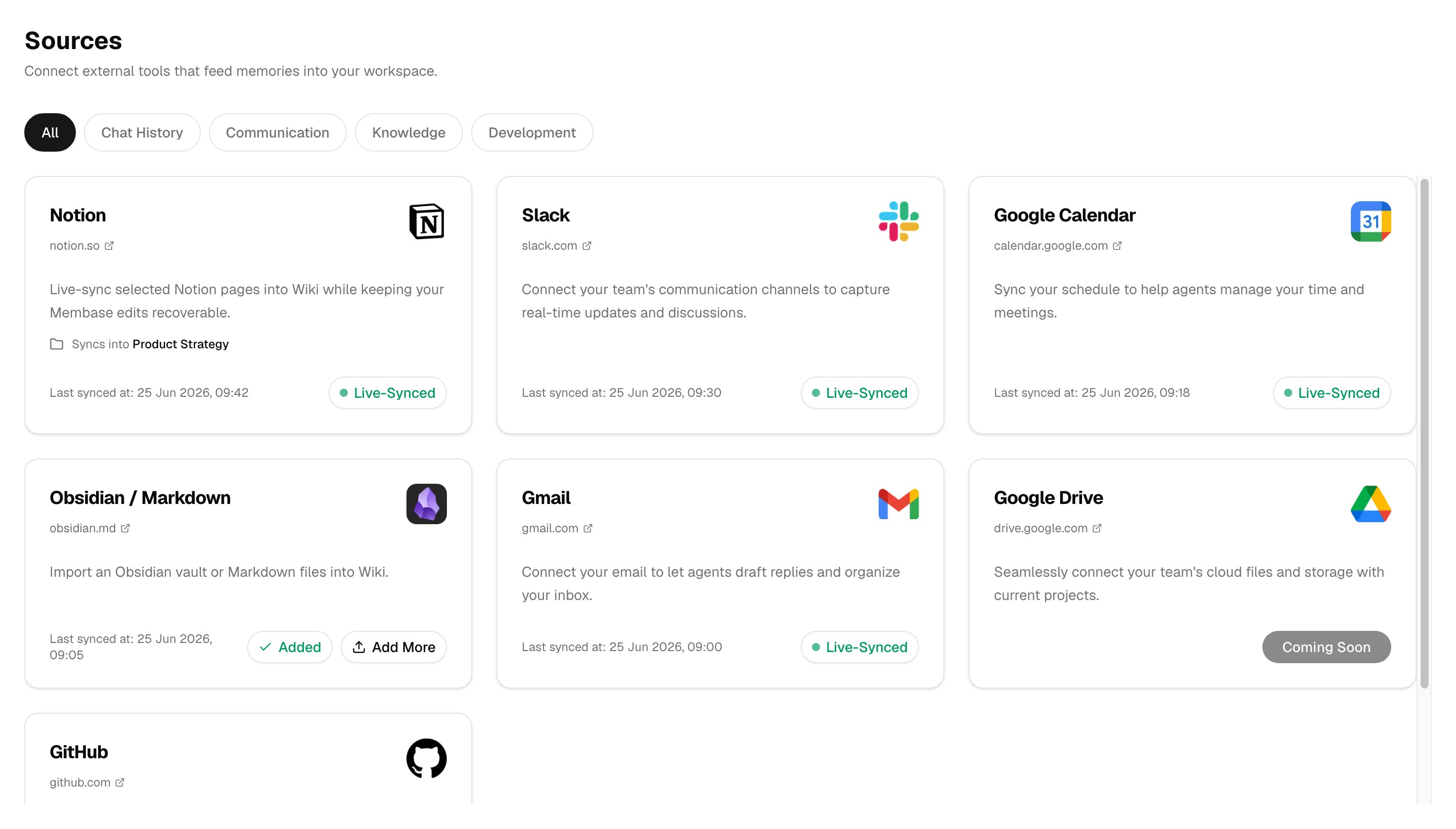
 Live integrations sync automatically after connection. One-time Wiki imports run in the background and report progress until processing finishes.
For the full list of supported and upcoming integrations, see the [Apps guide](/connectors/apps).
## Wiki Imports
If you already keep notes in Notion, Obsidian, or Markdown files, you can import them as **Wiki documents**. Choose **Wiki > Add > Import files**, select Notion, Obsidian, or Markdown, then choose a target Project or Basic.
For Obsidian vaults, `[[wikilinks]]` are preserved and documents land in the Wiki tab instead of the memory graph. Choose a target Project or Basic during import, then reorganize documents from the Wiki table when needed. See [App Integrations](/connectors/apps#wiki-imports) for import formats and destination behavior.
For Notion, use [App Integrations](/connectors/apps#notion-live-sync) to choose between live sync and one-time export imports.
## What Gets Captured
| Source | Examples of extracted context | Lands in |
| ------------------------------------ | -------------------------------------------------------------------------------------------------------- | -------------- |
| **Chat History Import** | Past preferences, project decisions, technical stacks, recurring patterns across months of conversations | Memory |
| **Agent Conversations** | New preferences, decisions made during the session, project details discussed in real time | Memory |
| **Chat in Dashboard** | Durable personal context or factual reference material you ask Chat to save | Memory or Wiki |
| **Gmail** | Project updates, action items, team communication, client context | Memory |
| **Google Calendar** | Meeting outcomes, deadlines, scheduling patterns, recurring events | Memory |
| **Slack** | Team discussions, channel updates, thread summaries, shared decisions | Memory |
| **Notion live sync** | Source-backed pages, docs, and notes selected during Notion setup | Wiki |
| **Notion/Obsidian/Markdown imports** | Reference docs, specs, personal notes, linked concept pages | Wiki |
| **Agent transcript capture** | Original user/assistant conversation transcripts from supported plugins | Wiki |
Memory holds your personal context and connects it as entities and episodes in a knowledge graph. The wiki holds factual, reference-style knowledge as linked markdown documents. Agents can search both through MCP.
## Next Steps
Learn how to retrieve and interact with your stored knowledge.
Explore Projects, backlinks, Notion sync, and imports.
Understand the full digesting and retrieval pipeline.
Live integrations sync automatically after connection. One-time Wiki imports run in the background and report progress until processing finishes.
For the full list of supported and upcoming integrations, see the [Apps guide](/connectors/apps).
## Wiki Imports
If you already keep notes in Notion, Obsidian, or Markdown files, you can import them as **Wiki documents**. Choose **Wiki > Add > Import files**, select Notion, Obsidian, or Markdown, then choose a target Project or Basic.
For Obsidian vaults, `[[wikilinks]]` are preserved and documents land in the Wiki tab instead of the memory graph. Choose a target Project or Basic during import, then reorganize documents from the Wiki table when needed. See [App Integrations](/connectors/apps#wiki-imports) for import formats and destination behavior.
For Notion, use [App Integrations](/connectors/apps#notion-live-sync) to choose between live sync and one-time export imports.
## What Gets Captured
| Source | Examples of extracted context | Lands in |
| ------------------------------------ | -------------------------------------------------------------------------------------------------------- | -------------- |
| **Chat History Import** | Past preferences, project decisions, technical stacks, recurring patterns across months of conversations | Memory |
| **Agent Conversations** | New preferences, decisions made during the session, project details discussed in real time | Memory |
| **Chat in Dashboard** | Durable personal context or factual reference material you ask Chat to save | Memory or Wiki |
| **Gmail** | Project updates, action items, team communication, client context | Memory |
| **Google Calendar** | Meeting outcomes, deadlines, scheduling patterns, recurring events | Memory |
| **Slack** | Team discussions, channel updates, thread summaries, shared decisions | Memory |
| **Notion live sync** | Source-backed pages, docs, and notes selected during Notion setup | Wiki |
| **Notion/Obsidian/Markdown imports** | Reference docs, specs, personal notes, linked concept pages | Wiki |
| **Agent transcript capture** | Original user/assistant conversation transcripts from supported plugins | Wiki |
Memory holds your personal context and connects it as entities and episodes in a knowledge graph. The wiki holds factual, reference-style knowledge as linked markdown documents. Agents can search both through MCP.
## Next Steps
Learn how to retrieve and interact with your stored knowledge.
Explore Projects, backlinks, Notion sync, and imports.
Understand the full digesting and retrieval pipeline.