

Click "Add to Cursor" to install automatically
From the Membase dashboard, select Cursor and click the “Add to Cursor” badge.
Click Install in the "Install MCP Server?" dialog
Cursor will show a confirmation dialog. Click Install to proceed.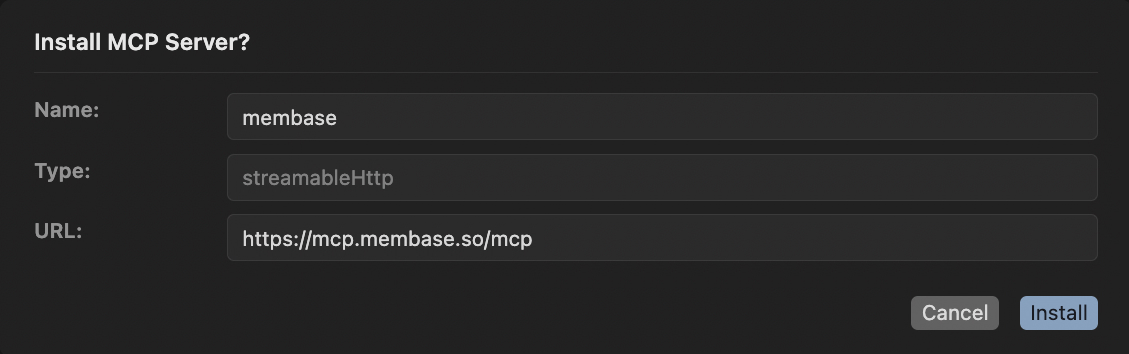
Click "Connect" next to Membase in MCP Servers section
After installation, find Membase in the MCP Servers section and click Connect.