

Chat History Import
The fastest way to bootstrap your knowledge base. If you’ve been using ChatGPT, Claude, or Gemini, you already have months of context in those tools. Chat History Import brings it all into Membase at once.
Upload your exported conversations from ChatGPT, Claude, or Gemini
1
Export from your LLM client
Download your conversation history using each platform’s export feature (ChatGPT Settings > Data controls > Export data, etc.).
2
Upload to Membase
Open Sources, scroll to the Chat History section, and upload the exported file. Membase accepts the native export formats from each platform.
3
Membase digests your history
Your conversations are processed through the same pipeline as live interactions. Preferences, decisions, project context, and relationships are extracted and added to your knowledge graph.
Live Agent Conversations
Once you’ve connected an agent via the Quickstart, context is captured automatically as you chat. Your agent callsadd_memory whenever it detects something worth remembering: preferences, decisions, project details, and more.

Your agent saves context to Membase in real time as you chat
add_wiki when you share factual, reference-style knowledge worth keeping as a document (specs, runbooks, stable notes). The two tools route context to the right store automatically.
Some agent plugins can also preserve conversation transcripts as Wiki documents. This keeps the original source material searchable without turning every transcript into extracted Memory.
You don’t need to do anything special. Just chat normally, and your knowledge base grows in the background.
Chat in Dashboard
Chat in Dashboard can also save durable personal context as memory, or create wiki documents when you ask it to save factual reference material. This is useful when you want to add or clarify context without opening an external agent.App Integrations
Your context doesn’t only live in AI conversations. Connect external apps from the Sources page to bring in context from the tools you use every day.Gmail
Project updates, team discussions, and action items from your inbox.
Google Calendar
Meetings, deadlines, and schedule context.
Slack
Messages, threads, and channel discussions from your workspace.
Notion
Selected Notion pages live-synced into Wiki.
Obsidian / Markdown
Existing notes, vaults, and Markdown files imported into Wiki.
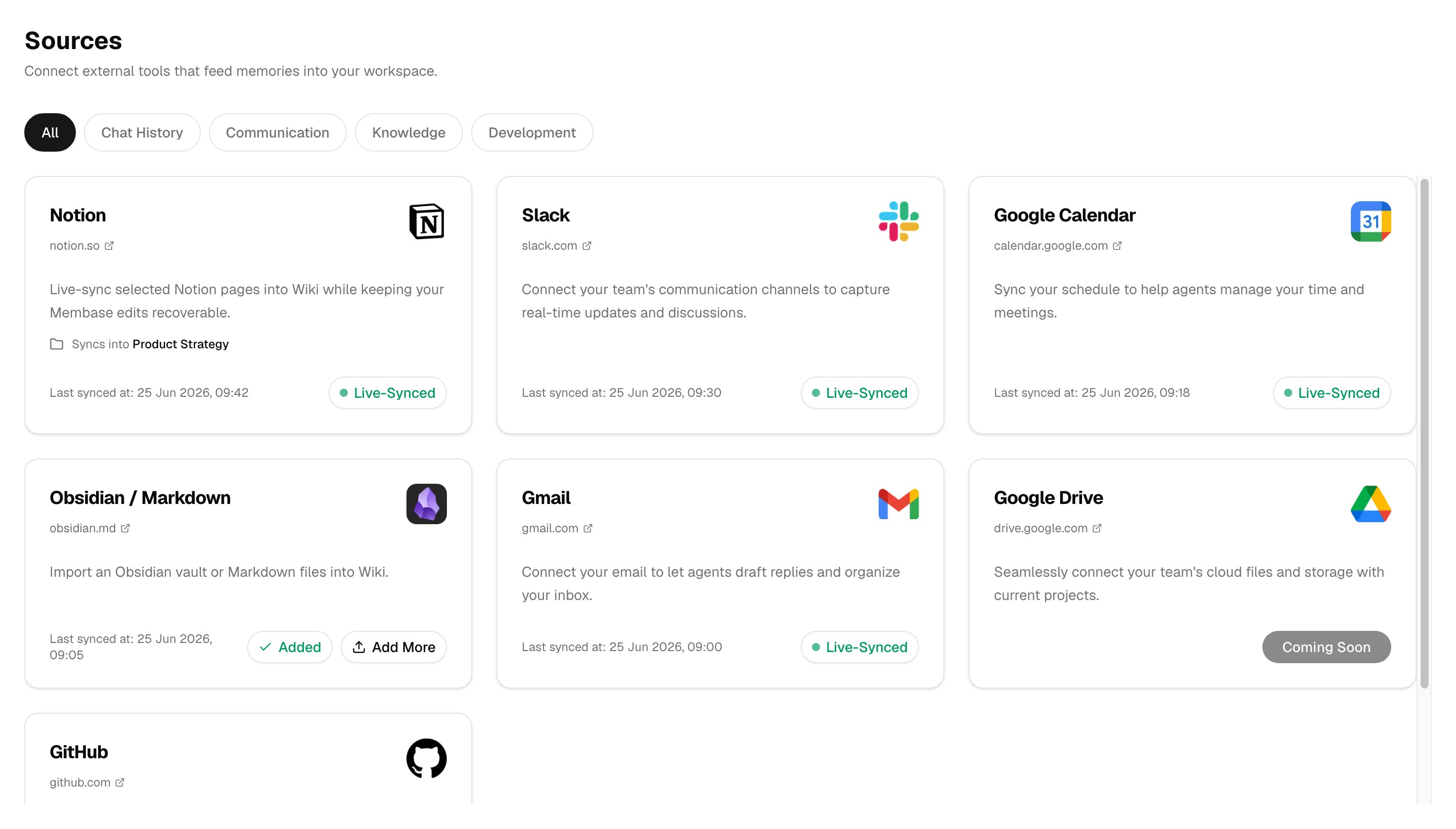
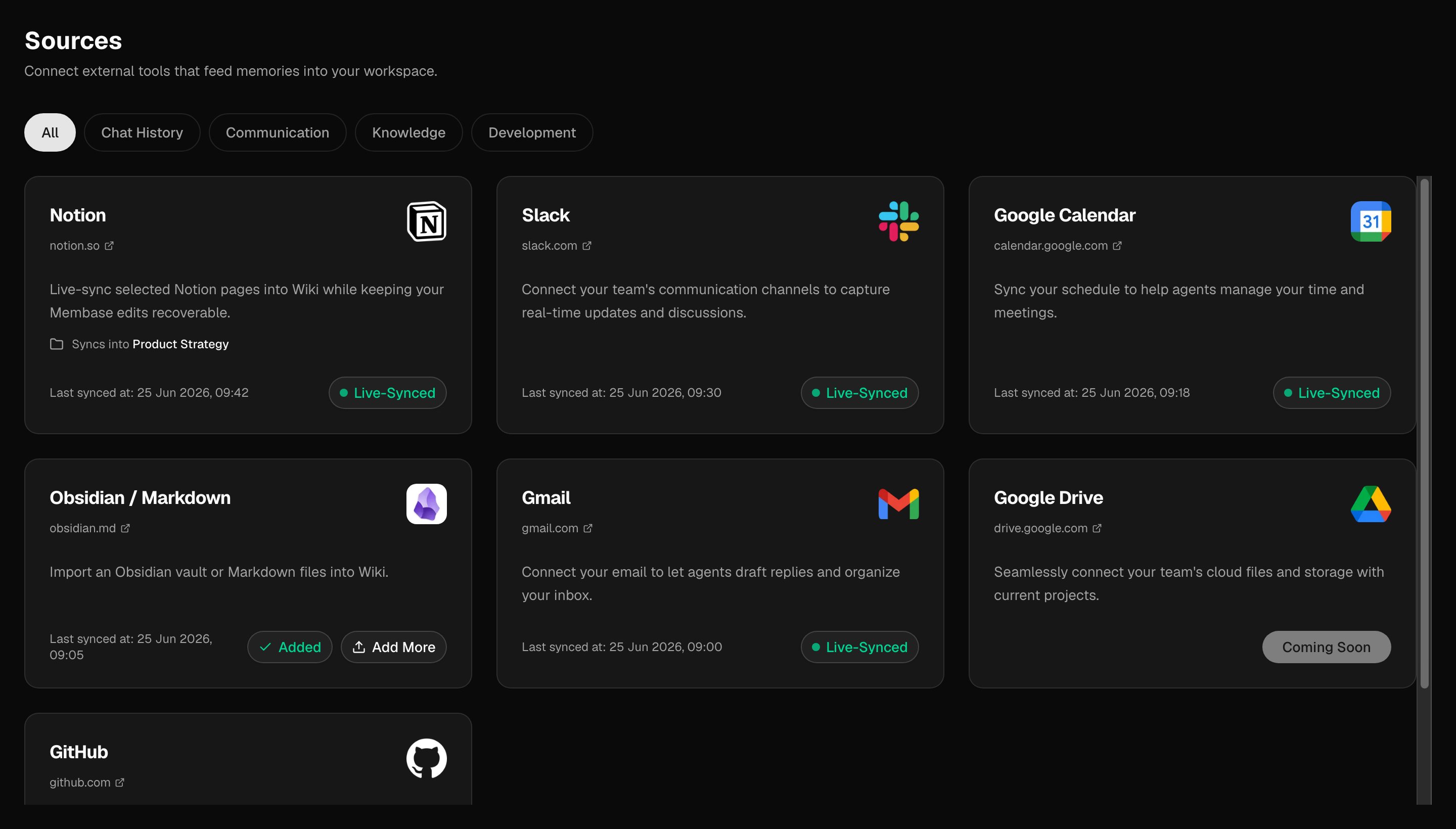
Connect apps and imports from the Sources page
For the full list of supported and upcoming integrations, see the Apps guide.
Wiki Imports
If you already keep notes in Notion, Obsidian, or Markdown files, you can import them as Wiki documents. Choose Wiki > Add > Import files, select Notion, Obsidian, or Markdown, then choose a target Project or Basic. For Obsidian vaults,[[wikilinks]] are preserved and documents land in the Wiki tab instead of the memory graph. Choose a target Project or Basic during import, then reorganize documents from the Wiki table when needed. See App Integrations for import formats and destination behavior.
For Notion, use App Integrations to choose between live sync and one-time export imports.
What Gets Captured
Memory holds your personal context and connects it as entities and episodes in a knowledge graph. The wiki holds factual, reference-style knowledge as linked markdown documents. Agents can search both through MCP.
Next Steps
Use Your Context
Learn how to retrieve and interact with your stored knowledge.
Knowledge Wiki
Explore Projects, backlinks, Notion sync, and imports.
How Membase Works
Understand the full digesting and retrieval pipeline.