

Memory vs Wiki
Membase keeps two complementary knowledge stores. Agents can search both, but each is optimized for a different kind of context.Projects
Projects are the main way to organize Wiki documents. They keep related docs together, make the Wiki graph easier to scan, and give agents a user-facing filing destination foradd_wiki, search_wiki, and update_wiki.
The Wiki root opens a Project overview. Each Project card shows its name, description, icon, color, document count, and recent activity, so you can scan the shape of your knowledge base before opening a specific Project.
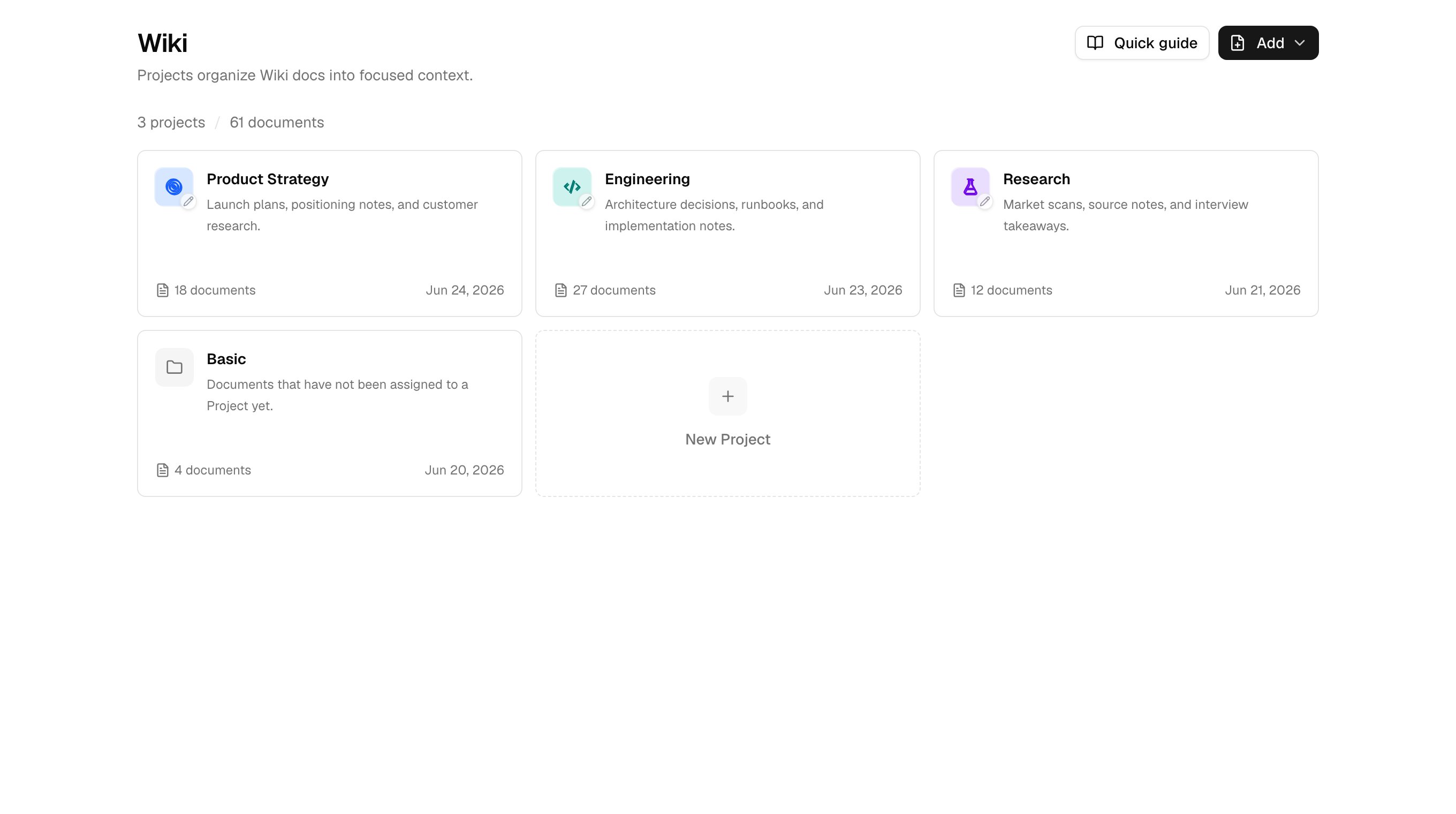
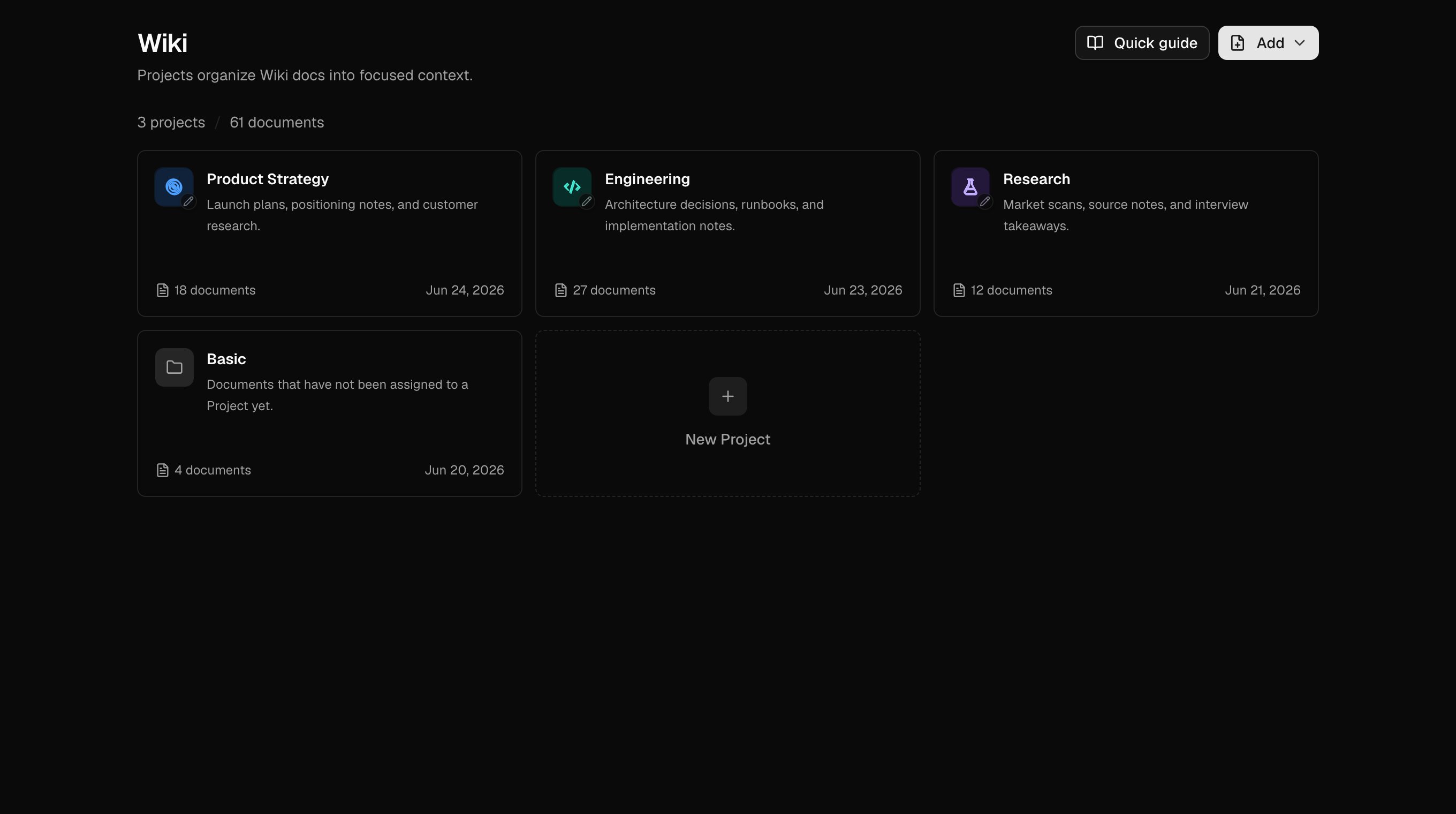
Wiki Project overview with Project descriptions, icons, colors, and Basic
- Open the Project overview, search across Projects, and filter by name, description, or document title
- Create, rename, reorder, and delete Projects
- Edit a Project name, description, icon, and color
- Add or import documents into a Project
- Move documents between Projects or back to Basic
- Scope the document list, graph, and search to a Project
Documents
Wiki documents are markdown files with source awareness and bidirectional links.- Markdown editor: Headings, lists, tables, code blocks, and other standard markdown formatting
[[Wikilinks]]: Type[[in the editor to get suggestions from existing document titles- Linked Mentions: See documents that reference the current document, with snippets around each mention
- Manual save: Save from the editor when you are ready
- Unsaved changes warning: Membase warns before discarding pending edits
- Source provenance: Imported and synced documents show where they came from when source data is available
Inline image attachments in Wiki documents are not supported yet. External image URLs in markdown can render, but there is no uploader inside the editor today.
Inbox Review
Wiki can suggest and route changes through Inbox Review when an automated update needs your attention. Review items can come from source changes, merge suggestions, larger rewrites, or conflict resolution work.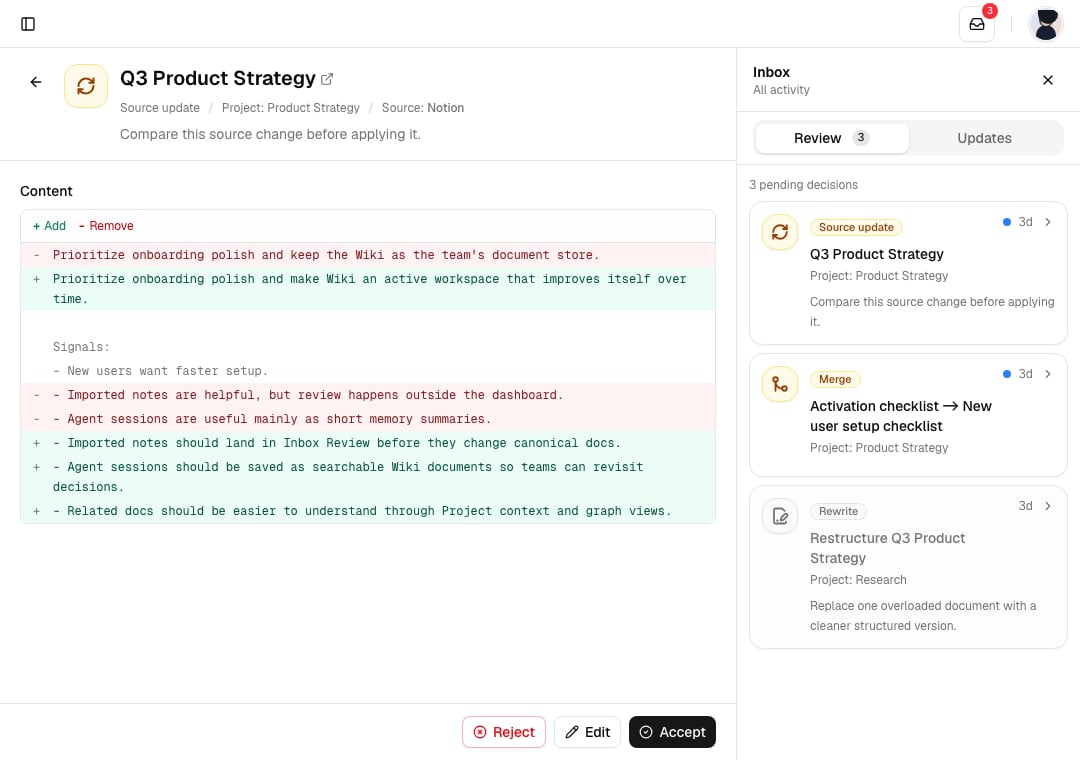
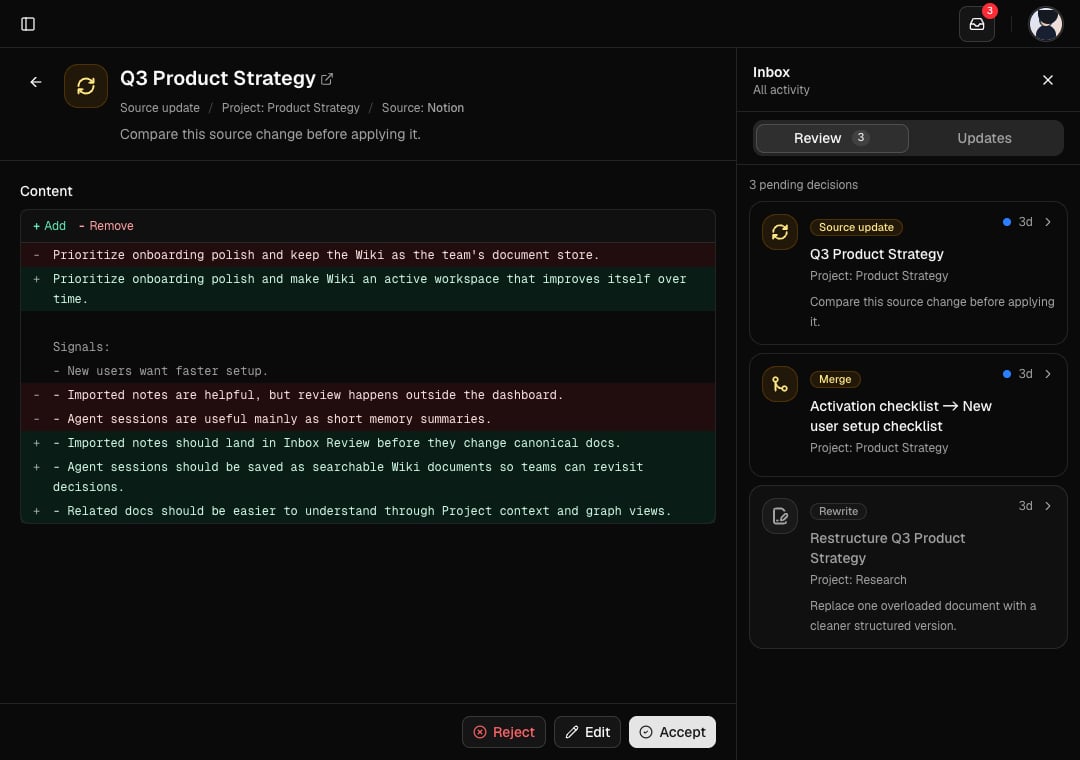
Inbox Review for accepting, editing, or rejecting proposed Wiki updates
- Inspect the current and proposed content
- Accept the proposed change
- Edit the proposed title, content, or metadata before accepting
- Reject a proposal
- Undo supported applied or auto-applied changes
Graph View
The Wiki graph visualizes documents as a network. Each node is a document, each edge is a[[wikilink]] or derived connection, and Project styling helps related knowledge stand out.
- Force layout: Drag nodes, zoom, and follow relationships
- Project styling: Project colors make clusters easier to scan
- Project scope: View all Wiki documents or one Project at a time
- Click a node: Open the document from the graph
Table View
The table view is a structured list of documents with sorting, filtering, and bulk actions.- Sort by title, Project, updated date, or created date
- Filter by Project or search query
- Pagination for large knowledge bases
- Bulk actions: Move selected documents to a Project or delete them
Importing Documents
Use Wiki > Add > Import files to import documents from a file or archive. Supported import formats:
Imports run in the background. The dialog shows upload and processing progress, then reports documents created, documents skipped, update candidates, backlinks created, and errors.
Target Project
When importing files, choose a target Project or Basic. Archive and multi-file imports keep source path information where available, but imported documents start in the destination you choose and can be moved later. See App Integrations for Notion live sync, Obsidian vault imports, and generic Markdown imports.Search
Wiki search uses hybrid retrieval: keyword matching plus semantic similarity. This lets you search with exact phrases such as"OAuth PKCE" or conceptual queries such as "how do we authenticate users".
Search is available in three places:
- Chat in Dashboard: Chat can pull from Memory and Wiki when stored context is relevant
- Wiki page: Search filters documents in the current Wiki scope
- Agents via MCP: Connected agents call
search_wikiduring conversations
Scoping Search to a Project
You can restrict search to one Project:- Dashboard: Click a Project in the Wiki navigation to scope the list, graph, and search
- MCP: Pass
projecttosearch_wiki. Existing Projects are surfaced to agents so they can reuse names.collectionremains a legacy alias for older clients.
Managing Wiki Documents
Unlike memories, Wiki documents are fully editable from both the dashboard and connected agents.Create
- Dashboard: Click Add > Write document, choose a Project or Basic, and write in markdown
- Import: Use Add > Import files for Notion exports, Obsidian vaults, or Markdown files
- Notion live sync: Connect Notion from Sources and choose a target Project
- Agent: Ask your connected agent to save a factual artifact; it can call
add_wiki
Edit
- Dashboard: Open any document and edit it inline
- Agent: Your agent can call
update_wikiwith a document ID to change title, content, or Project - Inbox Review: Source-backed or generated proposals can be edited before accepting
Delete
- Dashboard: Delete one document from its document view, or bulk-delete selected rows from the table
- Sources: Remove Notion live-synced documents or imported Obsidian/Markdown documents from the source card
- Agent: Your agent can call
delete_wikiwith a document ID. Agents should ask for confirmation before deleting.
MCP Tools
Your connected agents can read and write Wiki documents using these MCP tools. See the Membase MCP reference for full parameters.Document Quotas
Wiki documents are counted against your plan.
The current usage is shown on the Billing tab and at the top of the Wiki page. When you reach the limit, creating, syncing, or importing new documents returns a quota error until you delete existing documents or upgrade your plan.
Next Steps
Memory
Personal context that complements the Wiki.
Chat in Dashboard
Ask questions across both Memory and Wiki.
Membase MCP
See full parameters for the Wiki MCP tools.
Connect Apps
Bring more sources into your knowledge base.