

[[wikilinks]] are preserved, and you decide whether to keep the original markdown or let Membase summarize each note.
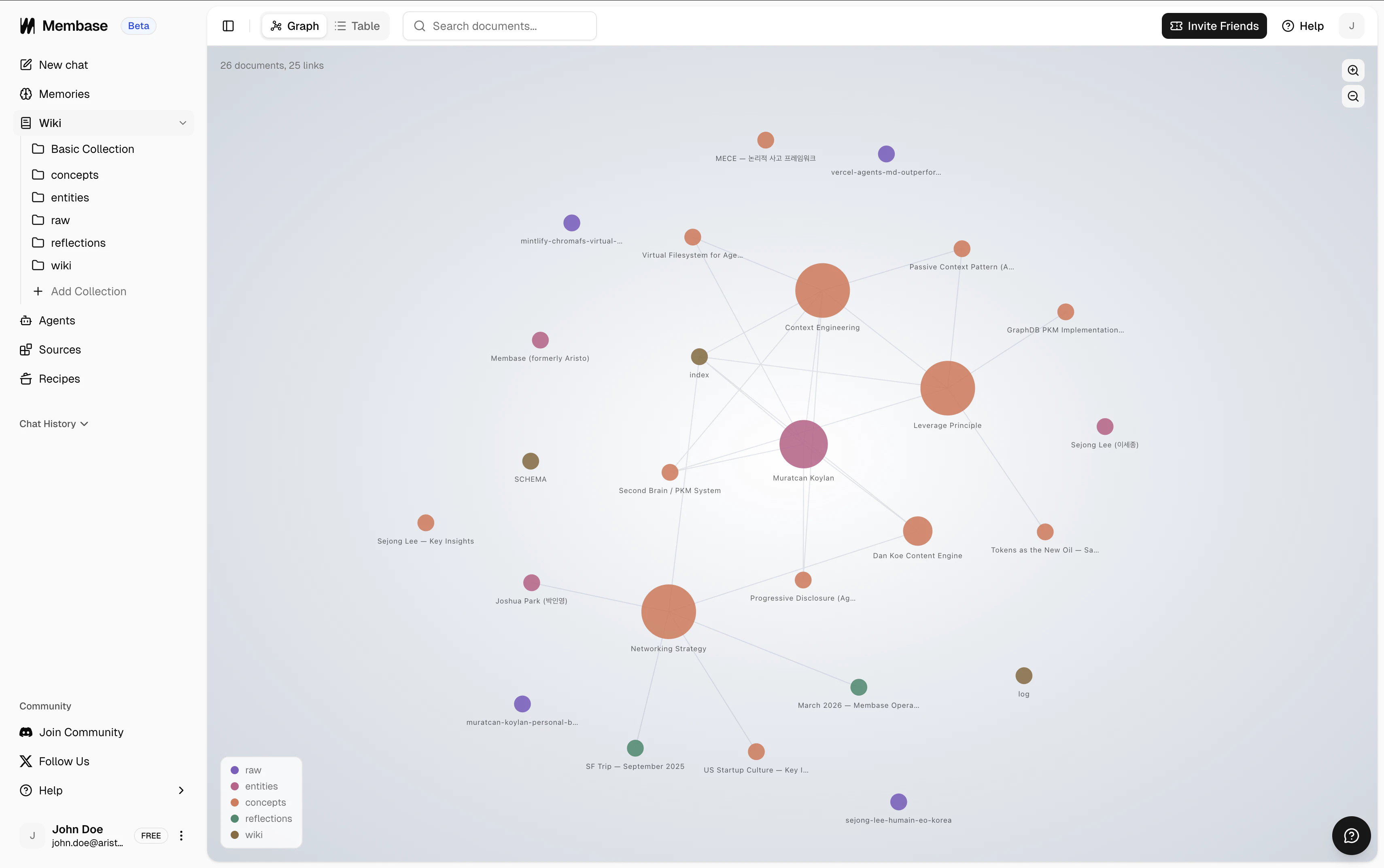
This page covers the import flow itself. If you want to know what you can do with your documents once they are inside Membase (editing, graph view, search, MCP tools), see the Knowledge Wiki guide.
How It Works
Once you drop a vault.zip onto the Wiki page, Membase:
- Unzips the archive and walks every
.mdfile - Creates one collection per top-level folder
- Turns each markdown file into a wiki document
- Resolves
[[wikilinks]]into real backlinks between documents - Optionally runs a context-aware LLM summarization on each document
Importing a Vault
Export your vault as a .zip
In your file manager (or from within Obsidian), zip your vault folder. Membase accepts the raw vault structure, so you do not need to flatten or rename anything before zipping.The maximum zip size is 5 GB with up to 10,000 files per import. Zip-inside-zip exports are supported when the outer archive is only a wrapper and does not contain markdown files directly.
Drop the zip on the Wiki page
Go to the Wiki tab in your dashboard and drag the 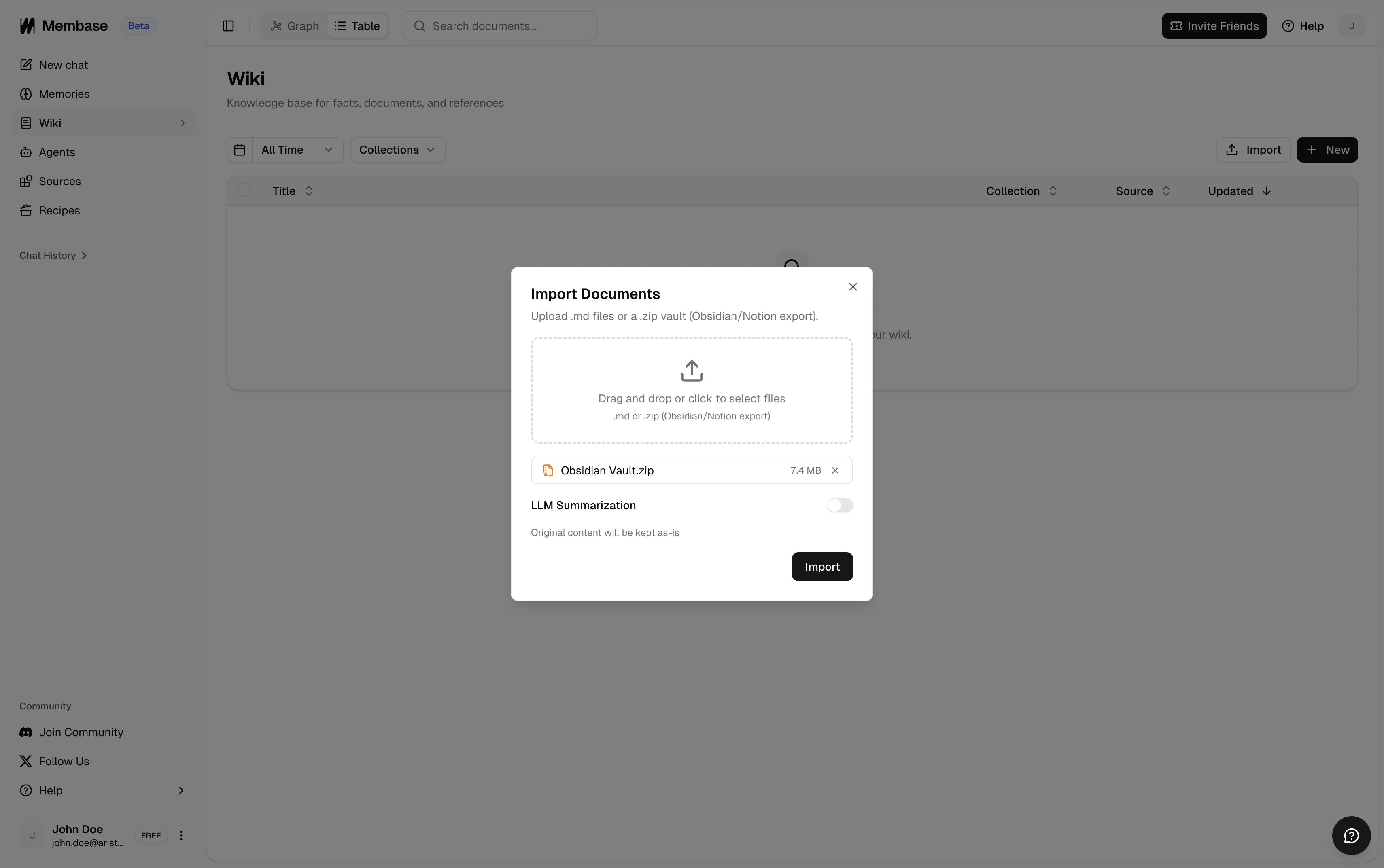
.zip onto the page (or use the Import Documents button). Uploads use resumable TUS, so large vaults are safe to pause and resume.Choose original or summarized content
Toggle LLM Summarization in the import dialog before starting:
- Off (default): The original markdown is kept exactly as written. Frontmatter is preserved in the document metadata and wikilinks are kept as-is.
- On: Each document is rewritten by an LLM into a structured, deduplicated summary using your other documents as context. Useful when your notes are long, repetitive, or written for yourself rather than for an agent.
Folder Structure Is Flattened
Obsidian vaults often nest folders several levels deep. Membase collections are a flat, single-depth concept, so imports are flattened like this:| Obsidian path (after unzipping) | Membase location |
|---|---|
Engineering/api.md | Collection: Engineering, document: api |
Engineering/Auth/oauth.md | Collection: Engineering, document: oauth |
Engineering/Auth/OIDC/flows.md | Collection: Engineering, document: flows |
notes.md (at archive root) | No collection (Basic Collection), document: notes |
If your zip has a single wrapper folder (e.g.
vault/Engineering/...), Membase detects it and treats the wrapper as the archive root. If your wrapper folder only contains root-level .md files and no subfolders, those files will be grouped into a collection named after the wrapper. Zip the contents of your vault (not the vault folder itself) to avoid this.If you rely on nested folders for grouping, flatten them in Obsidian first, or split your vault into multiple zips so each zip represents one collection.
Wikilinks and Backlinks
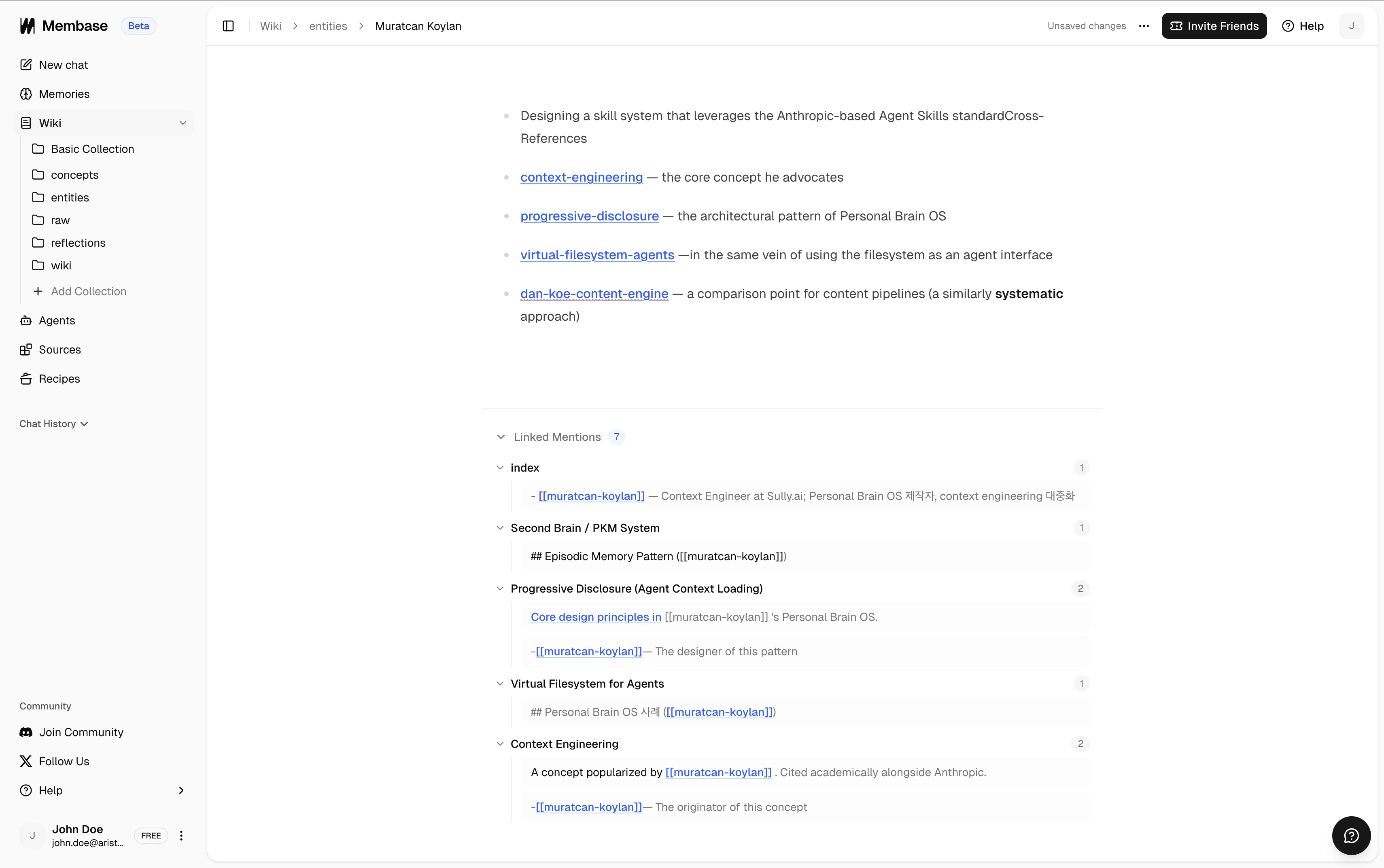
Obsidian and Membase use the same model:[[wikilink]] is the forward reference syntax, and backlinks are the reverse-direction view of those references. Both are preserved on import.
[[Note Title]]references are kept verbatim in the document content, just like in Obsidian- Each reference also creates a backlink edge between the source and target documents
- Those edges power the Wiki Graph view and the backlinks panel shown on each document page, so you can navigate in both directions
[[wikilink]] text. It automatically becomes a real backlink the moment you create or import a document with that title.
Deduplication
Membase dedupes wiki documents by normalized title across your entire wiki (not per collection). Two notes with the same title cannot coexist, even if they live in different collections.- Re-importing the same vault does not create duplicates. Matching documents are skipped, not overwritten.
- Documents with the same title but in different collections will also be skipped during import, so only one copy exists per user.
- The import result dialog reports skipped counts separately from errors.
- To refresh a document, either edit it in the dashboard or delete the old one before re-importing.
Limits
| Limit | Value |
|---|---|
| Max zip size | 5 GB |
| Max files per import | 10,000 |
| Document quota | 200 (Free) / 2,000 (Pro) |
Using Your Vault After Import
Once the import completes, your notes are regular wiki documents. Everything in the Knowledge Wiki guide applies:- Editing: Open any document in the dashboard and edit inline with
[[wikilink]]autocomplete - Graph view: See your vault as a force-directed network, colored per collection
- Table view: Sort, filter, and bulk-delete documents
- Hybrid search: Query by keyword or meaning, scoped to a collection if you like
- MCP tools: Your connected agents can call
search_wiki,add_wiki,update_wiki, anddelete_wiki
Knowledge Wiki
Full guide to editing, graph view, search, and MCP tools.
Membase MCP
Parameters for the wiki MCP tools your agents can call.
Bring Your Context
Import chat history and connect more sources.
Use Your Context
Chat with Memory, agent retrieval, and dashboard exploration.