

Exploring Memory
The Memories tab offers two views for browsing your knowledge.Graph View
The graph view visualizes your knowledge as an interactive network of entities (people, concepts, tools, projects) and the relationships between them.Graph view
- Entity-centric visualization: Each node represents an entity extracted from your memories
- Interactive navigation: Click, drag, zoom, and use the zoom controls to explore the graph
- Search: Search for an entity name to dim unrelated nodes in the graph
- Side panel: Click any entity to open a detail panel with Related Episodes, the memories that mention this entity. Click an episode to switch to Table View focused on it.
Table View
The table view lists all your episodes (memories) in a structured, searchable format with source and project attribution.Table view
- Episode list: Browse all memories with content previews, source tags, and project labels
- Sorting: Sort by date or source
- Source filtering: Filter memories by source (Cursor, Claude, Gmail, Slack, etc.)
- Project filtering: Filter memories by project slug (see Projects)
- Time range filtering: Preset ranges (Today, This Week, This Month, This Year, All Time) or a custom date range
- Search: Text filter over the currently loaded memories (client-side substring match; not semantic)
- Pagination: Choose 10, 20, or 50 rows per page
- Bulk actions: Select multiple rows to move them to a project or delete them.
- Side panel: Click any episode to open a detail panel with the full memory content and the option to change its project.
Creating Memories
Memories enter Membase through agents, Chat in Dashboard, and integrations. Creating memories directly from the Memories tab is not supported yet; use a connected agent or Chat when you want Membase to save new personal context.Agent Conversations
Your connected agent calls the
add_memory MCP tool during conversations to save relevant context: preferences, decisions, project details, meetings, and more.Chat in Dashboard
Chat can also call
add_memory when you share durable personal context inside the dashboard.Integrations
Connected data sources like Gmail, Google Calendar, and Slack automatically sync new data into Membase as memories.
Manual memory creation from the Memories tab is not available yet. New memories originate from agent interactions, Chat in Dashboard, or integrations.
Updating Memories
Memories are updated through your agents, not directly edited from the dashboard. When existing context becomes outdated, your agent callsadd_memory to register the updated information and flags the old memory as outdated. For example, if you switch from Redux to Zustand, the agent saves “uses Zustand” as a new memory and marks the old “uses Redux” memory as no longer valid so it no longer surfaces in future searches.
Behind the scenes, Membase also handles updates automatically during digesting:
- Deduplication: Similar memories from different sources are merged to avoid redundancy.
- Conflict resolution: When new information contradicts an existing memory, the latest data takes priority.
- Relationship updates: New connections between entities are added to the knowledge graph as they are discovered.
Projects
Projects are lightweight category tags for memories (slugs up to 60 characters). They let you scope agent searches and browse memories by topic without juggling sources.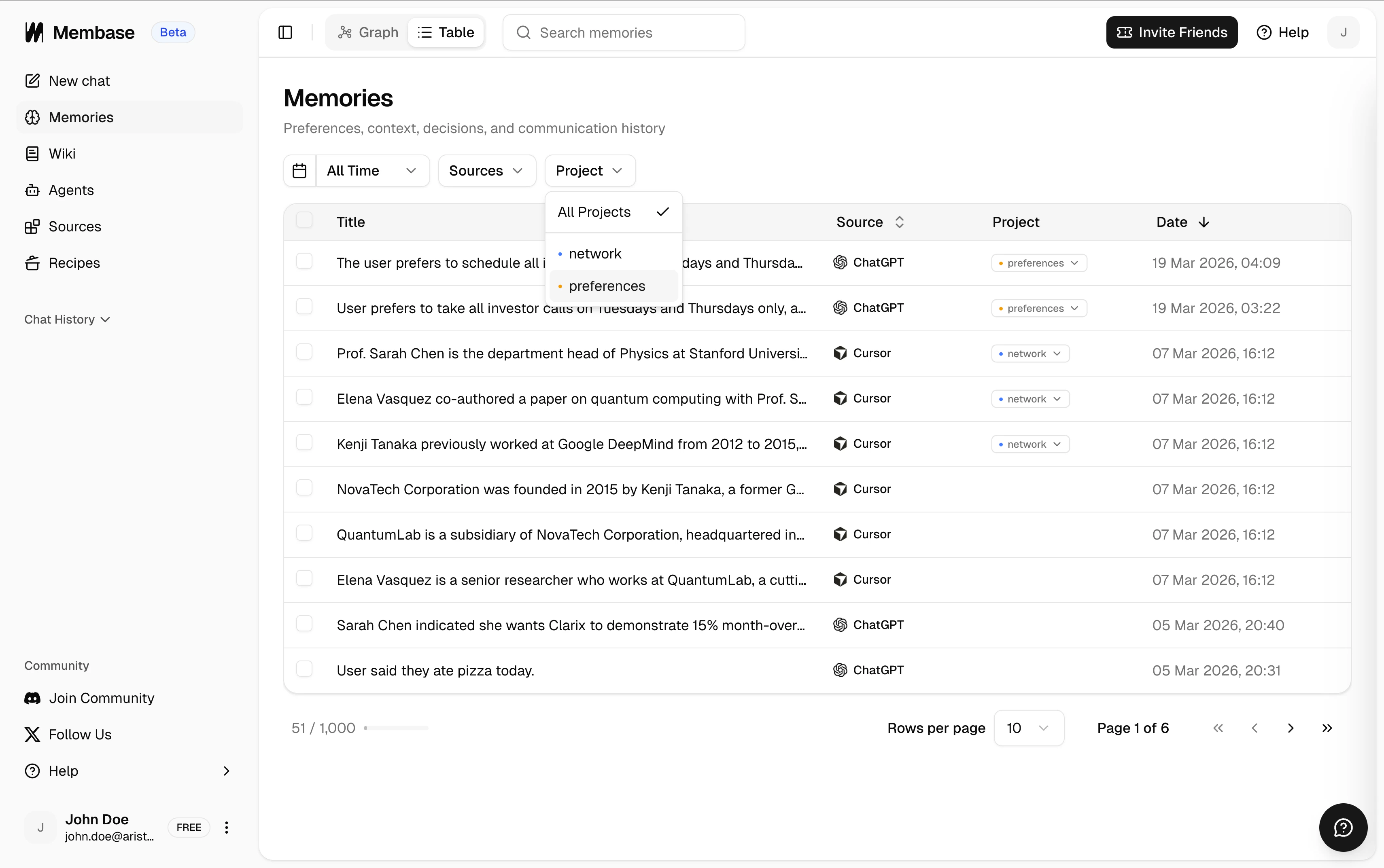
Inline project picker on a Memories table row
How projects get attached
- Explicit user request: Agents set the
projectfield onadd_memoryonly when you explicitly mention a project, tag, label, or category during the conversation (for example, “save this underacme-rewrite” or “file this underpersonal”). Agents do not guess or infer a project. - Profile instructions: If you want certain projects to be applied automatically, add a rule in your profile instructions (for example, “When I mention
acme, tag the memory under theacmeproject”). The agent will follow this during matching conversations. - Dashboard assignment: Assign or move memory projects directly from the Memories table. Click the project cell on one row, or select multiple rows and use Move to project to update them together.
Filtering and scoped search
- Dashboard filter: Filter the Memories table by project slug from the toolbar.
- Agent search: Agents pass
project: "acme"tosearch_memorywhen you explicitly ask for a project-scoped recall (for example, “what have I decided on theacmeproject?”). See Membase MCP: Projects. - Known projects sync: Your current project list is available to connected agents so they can reuse existing slugs instead of creating duplicates.
Deleting Memories
Delete a single memory
Delete individual memories from the Table View.- Switch to Table View.
- Click the Delete icon next to the memory you want to remove.
- Click Delete and confirm.
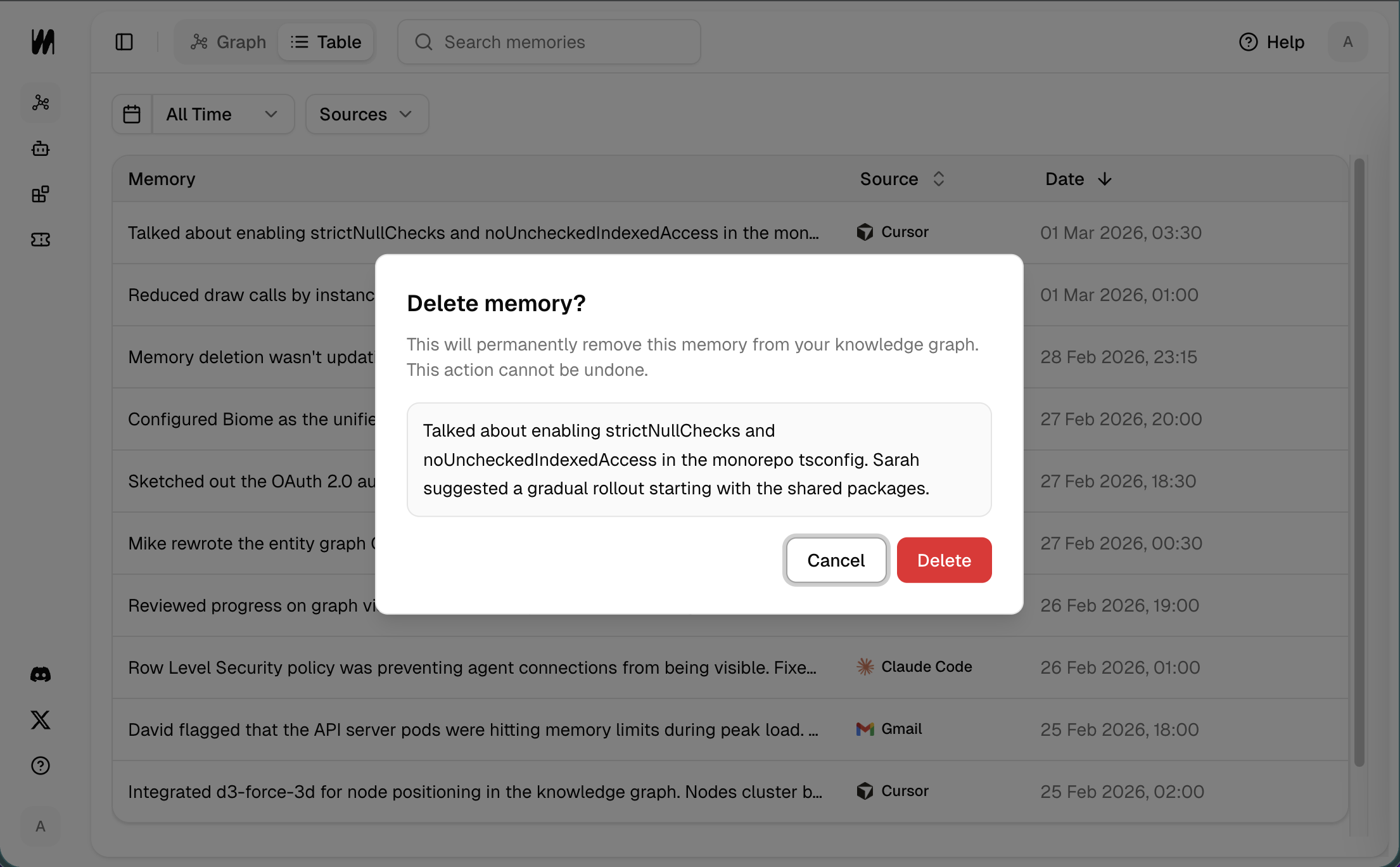
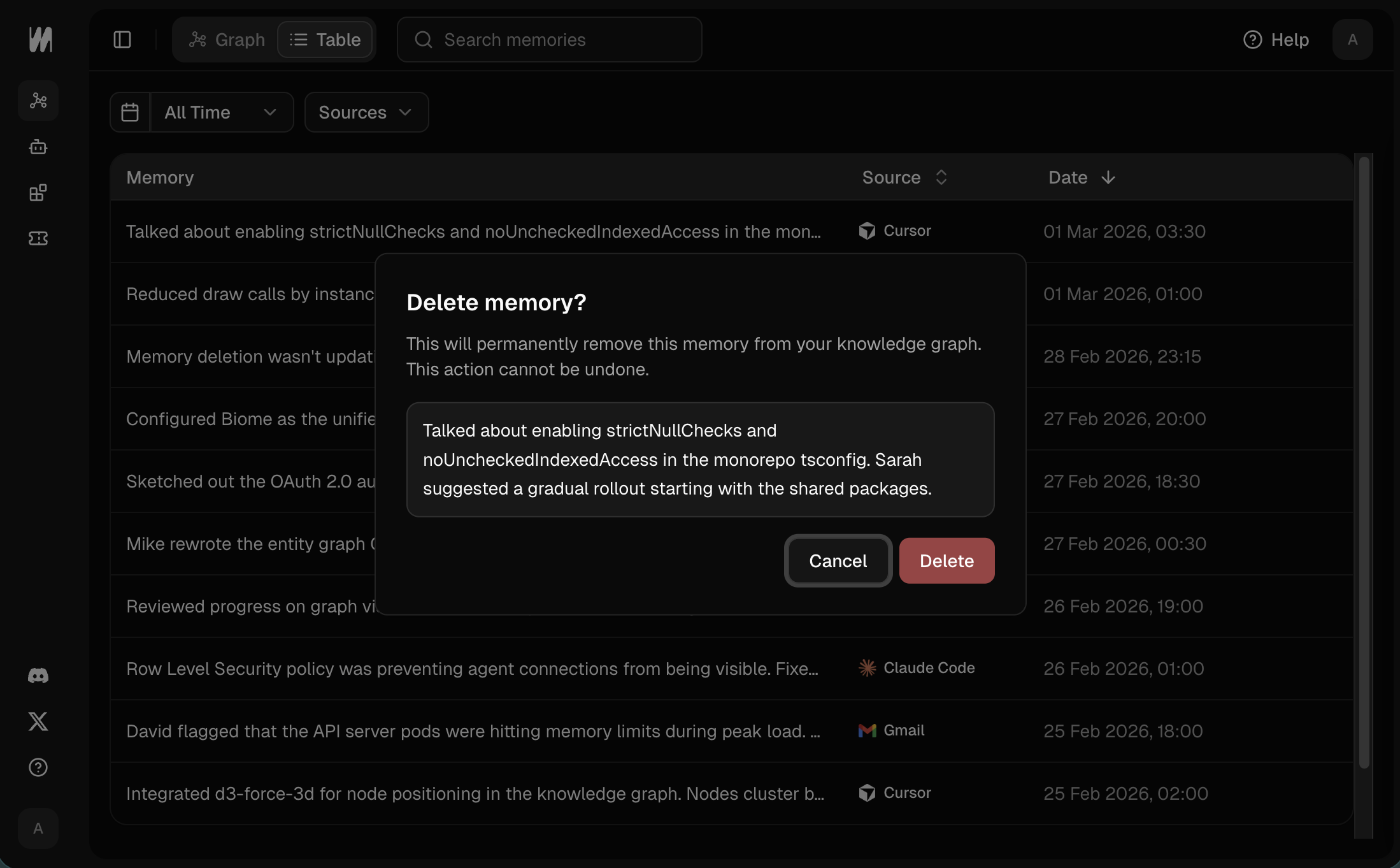
Deleting a memory from the table view
Delete multiple memories
Bulk-delete selected memories from the Table View.- Switch to Table View.
- Tick the checkboxes on the rows you want to remove (or use the header checkbox to select all rows on the page).
- Click Delete All in the bulk-actions bar that appears at the bottom of the table.
- Confirm in the dialog, which shows how many memories will be removed.
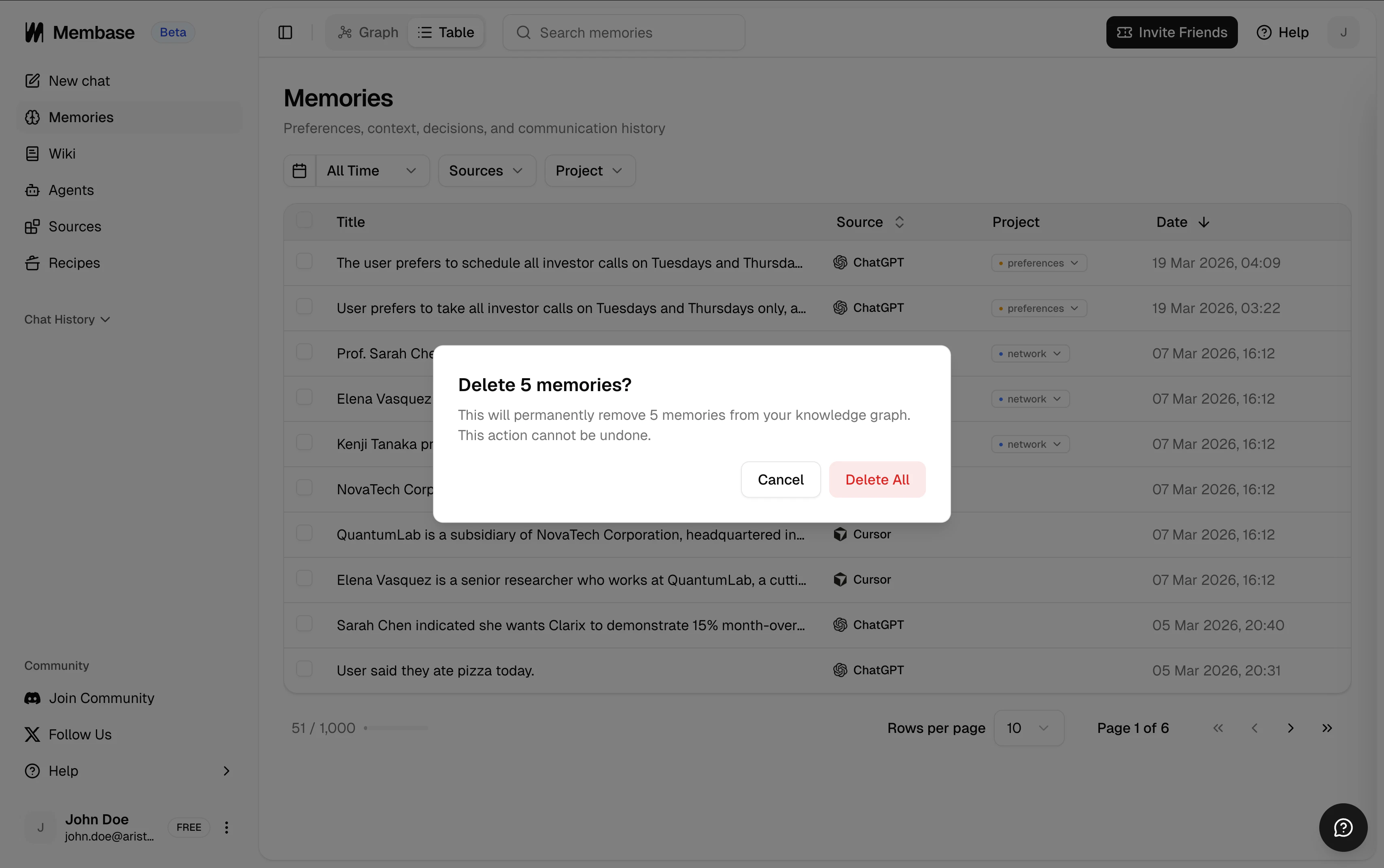
Bulk-delete action after selecting multiple rows
Delete all memories from a source
To remove all memories from a specific integration (for example, all Slack memories), go to the Sources page in the dashboard and click Delete memories on that integration. You will be asked to confirm before deletion.Disconnecting an integration by itself keeps your existing memories. Use the Delete memories action on the Sources page when you want to remove them, which is a separate step from disconnect.
Next Steps
Knowledge Wiki
Store factual knowledge alongside your memories.
Chat in Dashboard
Ask questions and get answers grounded in your memories.
Membase MCP
See the MCP tools agents use to read and write memory.
Connect Apps
Enrich memory with Gmail, Calendar, Slack, and more.